MAC GUIDE / FIRST OPEN
Open downloaded games on Mac: warnings and fixes
A routine first-open confirmation, an unidentified developer and a damaged app are different situations. Match the message before changing anything.
First check the app name and where you obtained it. Use the original project or Mac store. An app-specific approval applies to an identity warning; it is not a repair for a corrupt download or a malware alert.
- Developer cannot be verified →Check the source, then find the single-app approval.
- The app is damaged →Check the package and replace it from its original source.
Choose the message you see
| Message type | What it means | Next step |
|---|---|---|
| Downloaded-app confirmation | macOS asks you to confirm an expected downloaded app. | Confirm the app name and source before opening. |
| Developer or notarization cannot be verified | macOS cannot establish the app’s trusted identity. | Use the source check and single-app steps below. |
| App is damaged or modified | The package may be broken, corrupted or altered. | Obtain a fresh original package or rebuild your own app. |
| Malware or revoked authorization | macOS has blocked harmful or revoked software. | Stop using that copy and contact the original developer. |
For an app you know and trust
Verify the download
Compare the original project’s release link, platform and package name with the file you obtained. Stop if the app name or source is unexpected.
The file is the app you intended to get, from its original source.
Try opening it once
Open the installed app in Finder. Read and dismiss the identity warning so macOS records which app was blocked.
You know the exact app name shown in the alert.
Find the app-specific approval
Open System Settings → Privacy & Security. In the Security area, locate the blocked app and choose Open Anyway only for the app you have checked.
The app name beside the approval matches your intended app.
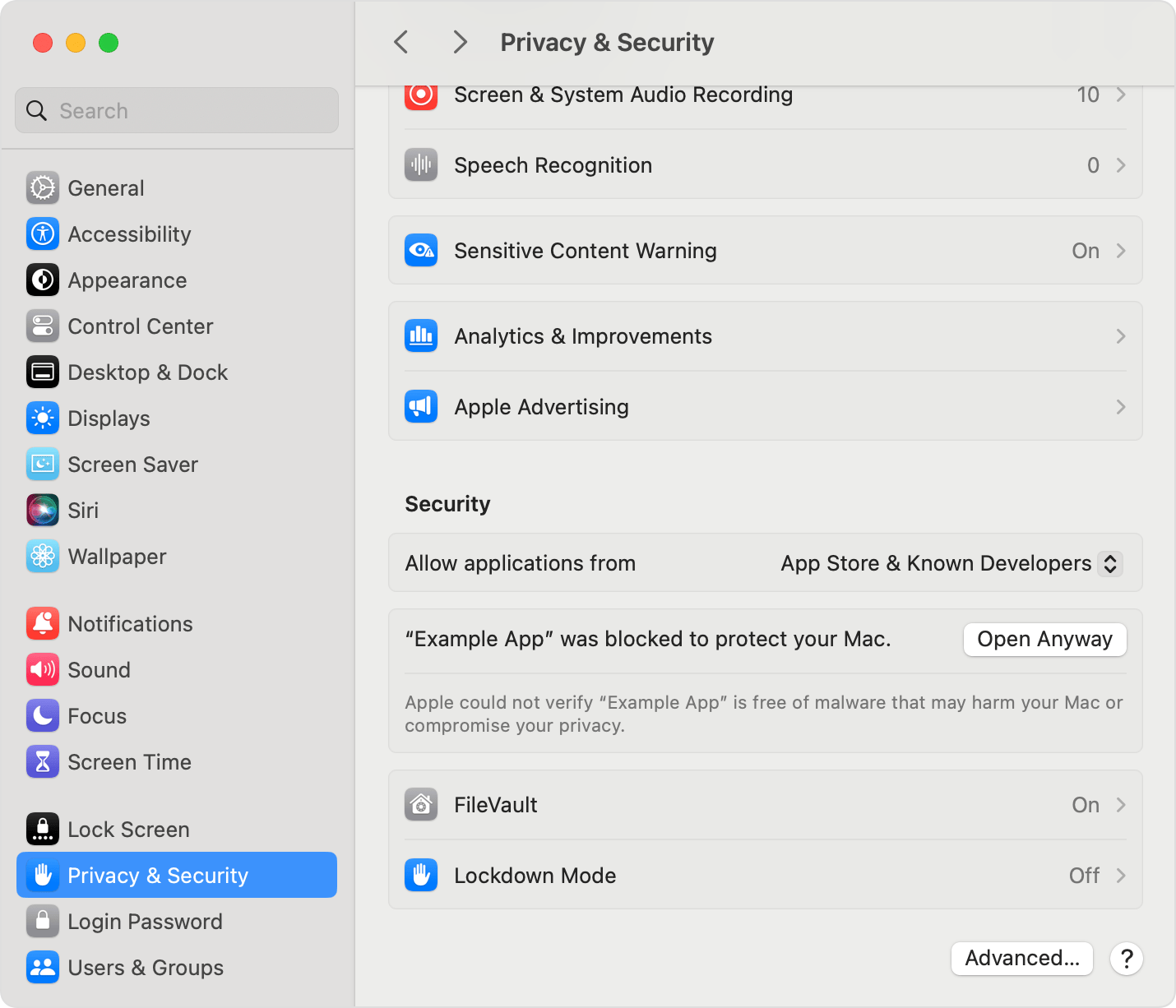
At this step, find the blocked app’s name in Security and the Open Anyway button beside it. Apple’s example shows where to look; the name on your Mac should match your game.
View full-size image ↗Confirm and return to the game
Read the repeated confirmation, then open the checked app. If it is managed by an administrator and no approval is available, ask that administrator rather than changing system protection.
The app reaches its own launcher, extraction prompt or title.
For a damaged or incomplete app
Keep saves separate from the app you are replacing. Download a fresh package from the original release or store and extract/install it fully. If you built the app yourself, keep the first build error and rerun that project’s documented build path.
A signature or data-integrity failure is not explained merely by the word “community”. If a new original package fails in the same way, give the developer the package version, macOS version and exact message.
A build check can happen at another stage
MacNativeGames can show macOS checking the completed TOTK app at the end of its build. Its first launch then checks game data inside the app. These are separate stages.
If you are already seeing a game-data or shader message, use TOTK troubleshooting or Ship of Harkinian Mac issues rather than repeating a system-approval step.