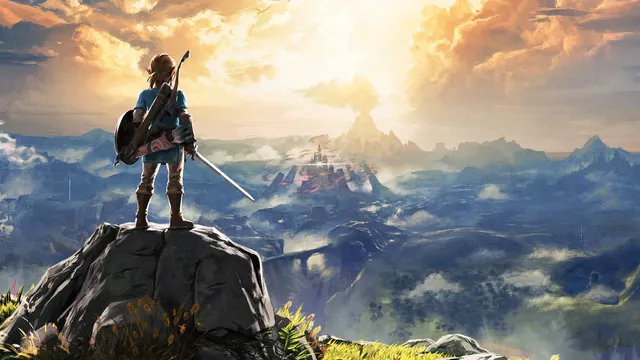
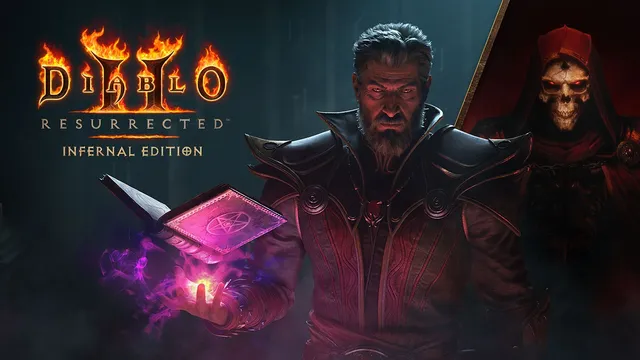
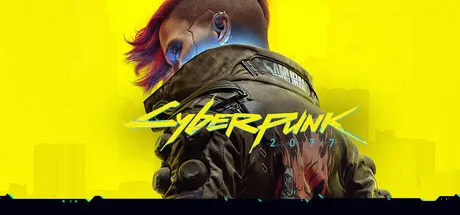
From Zelda and Diablo to Night City: each guide explains how to get the Mac version, what it needs, and where to start. Official releases install from a store; community projects use your own game files.
The MacNativeGames route uses an Apple silicon Mac with macOS 26+, a base game 1.0.0 dump and prod.keys from your own Nintendo Switch, obtained in accordance with applicable law. This site provides commands and configuration tools, not game files or keys. The build wizard turns your file choices into a command.
D2R Mobile has a default macOS 26+ app and an older-API variant for macOS 15–25. Both use Apple silicon. The build Mac has its own toolchain requirements.
Keep the workspace after building: the app still uses its resources. Move the complete save folder when transferring characters and shared items.
Ship of Harkinian extracts game data from your supported ROM before opening the game.
For Ocarina of Time, get the Mac app and choose your ROM on first launch. “Generating OTR” is the data-extraction stage. If opening or input fails, use the Mac issue guide.
Mac redscriptMac input loaderOne compatible modCompile → launch → test
Start with a working Mac installation. The script-mod guide covers Mac redscript and the input loader, store-specific folders, and a way back to the original files.
Each mod needs compatible dependencies. A Windows DLL or framework requirement changes what you can install.
A native Mac game runs as a Mac application. On Apple silicon, an Apple silicon build runs directly on the chip; an Intel-only Mac build needs Rosetta. Running a Windows game through CrossOver is a different path. Here are the four native routes covered in this guide.
01Official Mac port
The publisher sells a native Mac version. You buy it in a store and install it like any app.Example: Cyberpunk 2077 →
02Community source port
A community project rebuilt the game as a native program from reverse-engineered source. You supply your own ROM; the app extracts the game data from it.Example: Ship of Harkinian →
03Static recompilation
The original console machine code was translated ahead of time into a native program. You supply your own ROM; the project's download contains no game data.Compare the Majora’s Mask projects →
04Switch-native builder
A script on your Mac turns your own Switch game files into a Mac app: the game's ARM64 code runs directly, a small host answers the Switch system services, and graphics go through Metal. Nothing from the game is downloaded.Prepare for a Switch-native build →
Exploring Switch 2 emulation? Eglantine on Mac: setup, forks & game compatibility → explains Mac downloads, installation, controller setup and current limitations. This experimental emulator is a separate route from the native game builders above.
Choose current source in the build tool. Add --mod for supported main patches; install RomFS only if you want the existing version folder moved to a dated backup. The earlier setup remains available in the source selector.
Use key 4 to cycle 16:9, fit and ultrawide; key 5 toggles temporal edge smoothing on 1.4.3. The game’s frame rate and interpolated pictures remain separate readings.
Rebuild if your app predates e8b5259. The later 6.4h and 3.8h clean sessions did not log that recovery path; retain a new crash log if the symptom returns.
BEFORE YOU START
Choose the right route for your game.
Where do I download MacNativeGames—and is it the same as a Mac game store?
MacNativeGames is a community GitHub project that builds supported games from files you supply. This website is an independent guide with command and configuration tools. Get the source from the project reference. For games you can install directly from a store, use the game directory and choose an official Mac release.
Can I use an 8 GB M1 or M2 Mac, or do I need a newer chip?
Check the specific game and route first. The main MacNativeGames TOTK route requires Apple silicon and macOS 26 or later. An 8 GB Mac needs more conservative settings; meeting the requirements does not promise 60 FPS. Compare the reported machines and settings, then use the settings guide. Other games and forks have different requirements.
Which TOTK files and version should I use for a first build?
Start with your base game 1.0.0. To build 1.1.2, 1.2.1 or 1.4.3, add that version’s separate cumulative update; you do not need every intermediate update. An NSP base also needs a supported font source. Keep your game version separate from the project revision: the build guide explains both choices and generates the matching command. Supply your own lawfully obtained files and console keys; we do not provide them.
Can I install the Mac build directly on an iPhone or iPad?
No. A Mac .app is not an iOS installation package. The mobile route builds a separate .ipa on a Mac and requires a supported device, the matching Xcode setup, signing and installation steps. Follow the iPhone and iPad guide for your source revision, including updates and save preservation.
Do I upload my game, keys or file paths to use the tools?
No game-file or key upload is needed. The build wizard uses path text to prepare a command in your browser; it does not inspect the files or build the app on a server. The controller editor creates a text configuration locally. Running the command in Terminal is a separate step. Website analytics and advertising use third-party services; see Privacy for their data and controls.