Build from Terminal
Use a fixed checkout, prepare the tools and run the Mac-app command. The guide keeps every file and output path explicit.
Prepare the command-line route →NXNATIVE / APPLE SILICON MAC
Turn your own supported Switch files into a self-contained Mac app. Match the game profile first, choose the Mac-app target, then find the launch settings, saves and logs.



Instructions use seedds/nxnative ae4ec43 · 29 October 2026. Mac-app, developer Mac and iOS outputs are separate choices.
Use a fixed checkout, prepare the tools and run the Mac-app command. The guide keeps every file and output path explicit.
Prepare the command-line route →The separate graphical builder collects your files and output choice in a window. Follow its own dependency checker and managed-library controls.
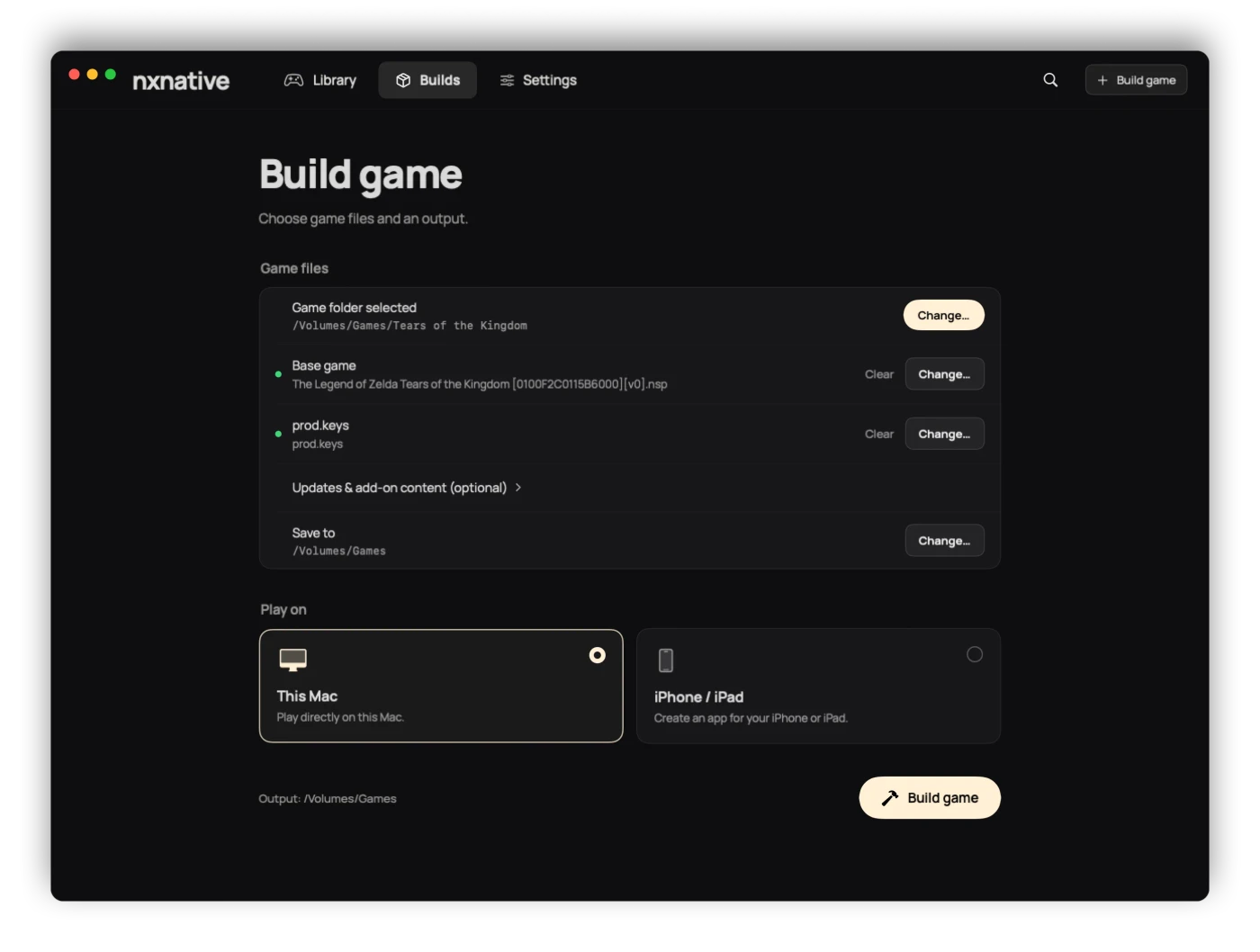
Follow graphical setup →01Select This Mac
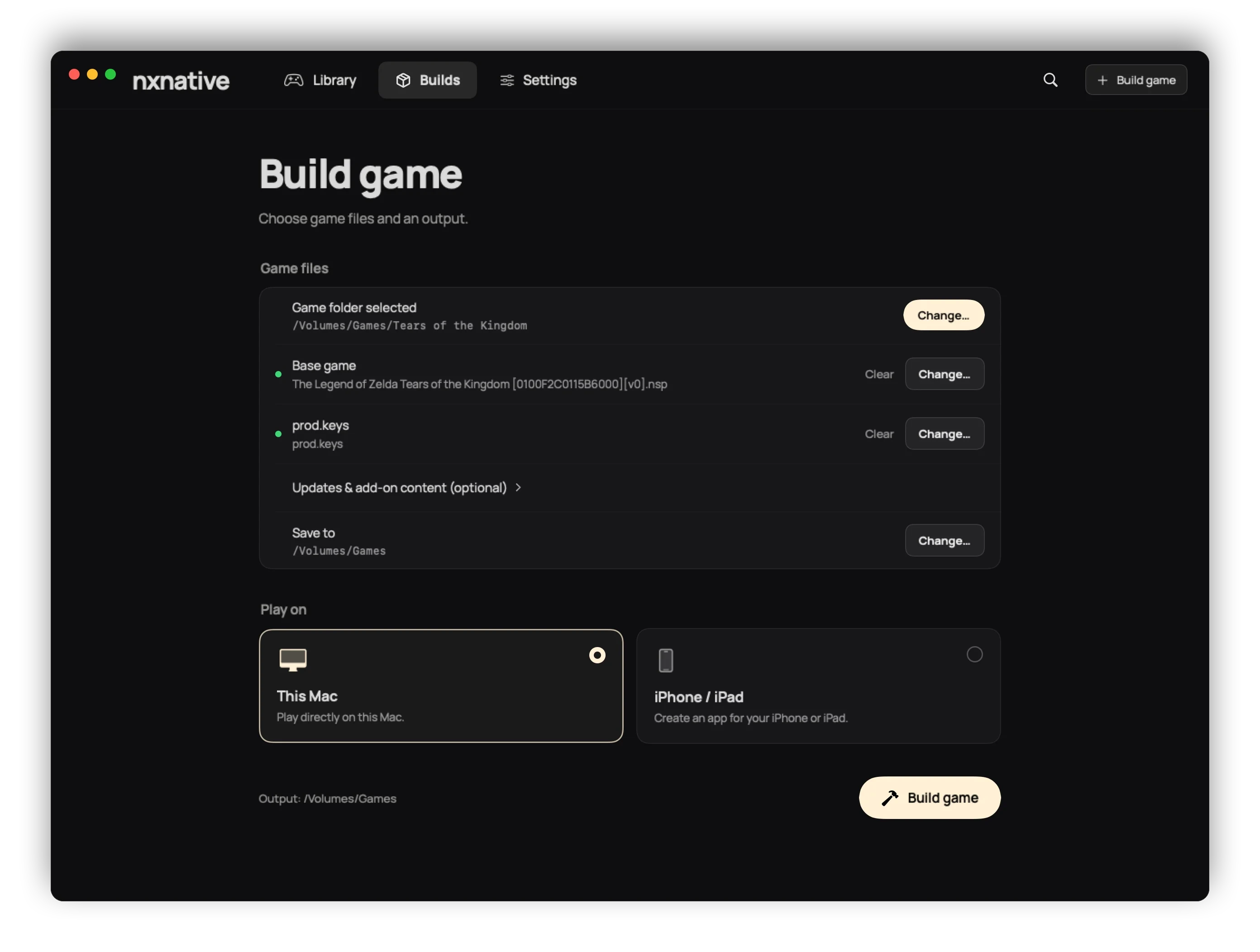
02Start Build game
prod.keys.These are build-host requirements. The finished app records its own minimum macOS from the compiled host. A graphical frontend opening on an older OS does not make Xcode 27.1 run there.
Install Xcode 27.1 and its Metal toolchain from Apple. Open it once to complete setup. Check the selected tools:
xcode-select -p
xcodebuild -version
xcrun -f metal
The first line should name the full Xcode developer folder, rather than /Library/Developer/CommandLineTools. If the full app is at the following path, select it:
sudo xcode-select -s /Applications/Xcode.app/Contents/DeveloperUse an arm64 Homebrew installation. Keep the Python packages in a virtual environment so the build uses the same interpreter as the installed modules.
brew install python xcodegen zstd glslang
brew install --cask dotnet-sdk
Confirm dotnet --list-sdks includes 10.x. If Homebrew supplies a different major version, install the .NET 10 SDK from Microsoft’s 10.0 downloads.
python3 -m venv "$HOME/.venvs/nxnative"
source "$HOME/.venvs/nxnative/bin/activate"
python -m pip install lz4 capstone fonttools nsz
python -m pip install 'backports.zstd; python_version < "3.14"'
python -c 'import platform; print(platform.machine())'
The architecture should be arm64. An Intel Python under Rosetta can start incompatible tool slices even on an Apple silicon Mac.
The upstream gallery lists 104 game entries across Mac and iPhone. The list below maps those entries to the source profile’s build version. Open a game’s notes to read which platform, scene and limitations were recorded; a gallery entry is not a complete Mac playthrough.
104 upstream gallery entries
Profile version: 4.0.0, 4.0.1
0100152000022000Profile version: 1.0.1 (cartridge base)
0100B99019412000Profile version: 1.0.1
0100ECD018EBE000Profile version: 1.2.2
010028600EBDA000Profile version: 1.2.1 (and 1.0.0)
010015100B514000Profile version: 1.3.1
010099C022B96000Profile version: 1.4.0
0100FD8022DAA000Profile version: 1.4.1
0100000000010000Profile version: 1.9.0
01007EF00011E000Profile version: 1.1.0
01006BB00C6F0000Profile version: 1.4.3
0100F2C0115B6000Profile version: 1.10
01003FC01670C000Profile version: 1.1.2
0100A83022A22000Profile version: 1.0.0.2
010005501E68C000Profile version: 1.0.0 (base)
0100300012F2A000Profile version: 1.0.1
010089B00D09C000Profile version: 1.0.2
0100713016CCC000Profile version: 3.0.3
01006F8002326000Profile version: 1.0.10
010020D01AD24000Profile version: 1.0.1
01007300020FA000Profile version: 1.1.3
0100CD801CE5E000Profile version: 1.293
010086A022444000Profile version: 1.1
010076F0049A2000Profile version: 1.2
01007960049A0000Profile version: 1.2.0
01004A4010FEA000Profile version: 1.2.0
0100620012D6E000Profile version: 1.0.0 (base)
0100F5D01DA3A000Profile version: 1.4.2
01009BF0072D4000Profile version: 1.0.1a
0100BF00112C0000Profile version: 1.4.1.1
01002B30028F6000Profile version: 1.3.7
0100A5C00D162000Profile version: 1.0.3
01004AB00A260000Profile version: 1.0.3
010014E00DB56000Profile version: 1.0.2
0100C1F0051B6000Profile version: 1.2.0
0100A9D01C446000Profile version: 1.0.4
01006C300E9F0000Profile version: 1.0.1
0100606026F12000Profile version: 1.4.0
010038B015560000Profile version: 2.0.0
0100A6301214E000Profile version: 1.2.0
010055D009F78000Profile version: 1.0.0 (base)
010029B018432000Profile version: 1.0.0 (base)
010036E00FB20000Profile version: 1.0.38233
0100535012974000Profile version: base game
0100A00019DE0000Profile version: 1.0.30000
010013C00E930000Profile version: 1.3.0
01002B00111A2000Profile version: 1.1.0
01004D300C5AE000Profile version: 1.4.0
0100DCA0064A6000Profile version: 2.1.0
010093801237C000Profile version: 16.0.2
0100B04011742000Profile version: 1.1.1
010051701FB46000Profile version: 1.0.5
010057D006492000Profile version: 1.0.5
01005270232F2000Profile version: 1.1.1
0100A3501946E000Profile version: 1.0.1
0100E44016C22000Profile version: 1.0.2
01005CA01580E000Profile version: 1.1.1
0100B7C00933A000Profile version: 1.3.0
0100000011D90000Profile version: 2.0.2
0100F43008C44000Profile version: 1.0.0
0100A3D008C5C000Profile version: 1.3.2
0100ABF008968000Profile version: 1.3.2
01008DB008C2C000Profile version: 1.0.3
01007BB017812000Profile version: 1.0.0 (base)
010020400E1C2000Profile version: 1.0.0 (base)
0100D9F01D474000Profile version: 1.1.3
0100C2A01A730000Profile version: 2.0.59001
01008C0016544000Profile version: 1.0.3
010069C01AB82000Profile version: 1.6.15.13
0100E65002BB8000Profile version: 1.0.3
01008BC024FDE000Profile version: 13.0.5
01006A800016E000Profile version: 1.1.1
0100346017304000Profile version: 1.05
010069401ADB8000Profile version: 1.0.1
01006000040C2000Profile version: 1.0.3
010056B015FE8000Profile version: 1.1.0
01008CF01BAAC000Profile version: 1.1.0
01009D901BC56000Profile version: 1.6.2225577
0100317013770000Profile version: 2.1.0
0100E95004038000Profile version: 2.2.1
010074F013262000Profile version: 1.0.3
0100CE4010AAC000Profile version: 1.0.1
010032E00E6E2000Profile version: 1.0.8
010040801A4C8000Profile version: 1.0.0 (base)
0100D5B026844000Profile version: 1.0.8
0100698009C6E000Profile version: 1.0.0 (base)
0100BC300CB48000Profile version: 1.9.589692
010067300059A000Profile version: 1.0.2
010062B01525C000Profile version: 1.1.2
0100FF500E34A000Profile version: 1.1.1
01001F5010DFA000Profile version: 2.3.0
0100965017338000Profile version: 1.5.28
01002E7016C46000Profile version: 1.0.1
0100A3900C3E2000Profile version: 1.0.5
0100ACD0163D0000Profile version: 1.0.0 (base)
010038600B27E000Profile version: 1.0.12
01002CD00A51C000Profile version: 1.5.1
010089C01E9CA000Profile version: 2.2.1
010016100A186000Profile version: 1.23.55063
010014C011146000Profile version: 4.1.1
0100CA9002322000Profile version: 1.0.9
0100EC9010258000Profile version: 1.1.1
01006FE013472000Profile version: 1.23.83358
0100429011144000Profile version: 1.12.0
01009320084A4000No profile matches. Try a shorter name or clear the search.
Regional profiles may have different title IDs. Use the ID of your base game, not its update or DLC ID. Open the complete source index, including regional profiles ↗.
For Monster Hunter Rise 16.0.2, the dedicated guide explains the input files and 60 FPS report. For the MacNativeGames project’s Zelda route, keep using the separate TOTK build wizard; its arguments and saved data are different.
Keep an existing modified checkout intact. The fixed revision below makes the commands and profile list reproducible.
git clone https://github.com/seedds/nxnative.git nxnative-guide
cd nxnative-guide
git checkout ae4ec43d57845bdaf07f15cdb39a31363f158048Put the base and matching update in one folder. Add owned DLC packages only when needed. Keep unrelated games and older duplicate updates elsewhere: the packer normally selects the newest update in the input folder.
~/Games/MarioWonder/
├─ base.nsp
└─ update.nsp

~/keys/prod.keys
The filenames are examples. Keys remain a separate input; the script reads them locally. Compressed NSZ/XCZ inputs require the nsz dependency.
source "$HOME/.venvs/nxnative/bin/activate"
python scripts/build_ipa_from_nsp.py "$HOME/Games/MarioWonder" -k "$HOME/keys/prod.keys" --platform mac-app
The default output is the game’s named .app in the input folder. To choose another location, append -o "/path/to/Game.app". Leave the build running while it extracts, rewrites, translates shaders and packages the app.
--platform mac-app creates the Finder app. Copy or move the entire app after completion; it carries its runtime game data.
--platform mac builds the development host. With no platform argument, the script builds an iOS IPA. --romfs separate belongs to iOS, not the Mac command.
Open the completed app in Finder, choose launch settings and press Play. Keep the input and build folders for faster rebuilds even though the self-contained app does not depend on them.
If macOS shows a warning, match the actual downloaded-app message. If the app exits or hangs, use the title-ID log before changing unrelated settings.
See the Mac-output controls above ↑
NX2Apple is a separate fork with a graphical library and builder. Its Mac release is NS-Port-Builder-macOS-arm64.zip. Use its own installation instructions and dependency screen.
The frontend can open on macOS 13, but the documented shader build still needs macOS 26.6 and Xcode 27.1. Its managed-library folders differ from the core Mac-app folders below; use the fork’s own data controls when backing up that route.
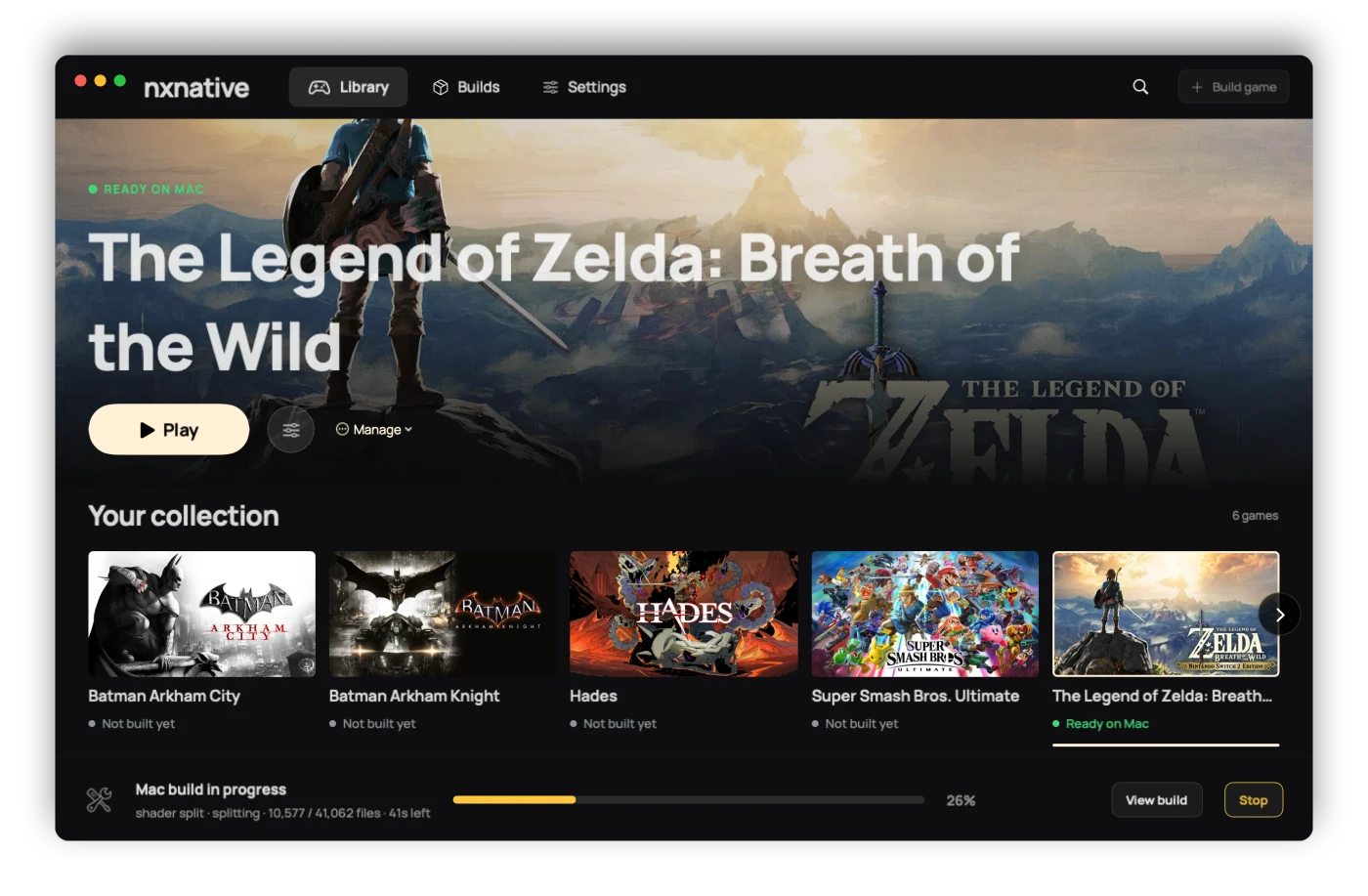
01Play the selected game
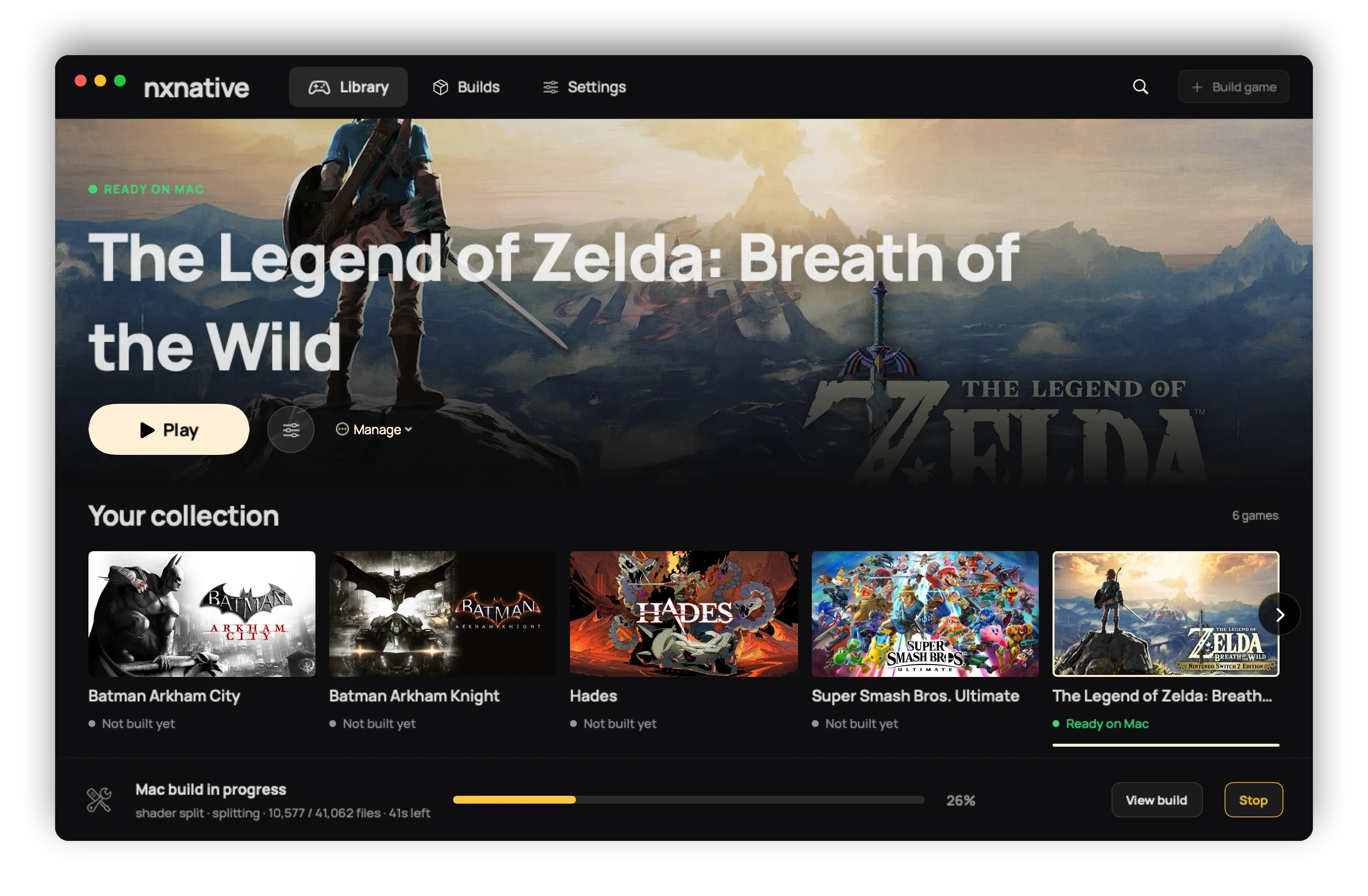
02Open game actions
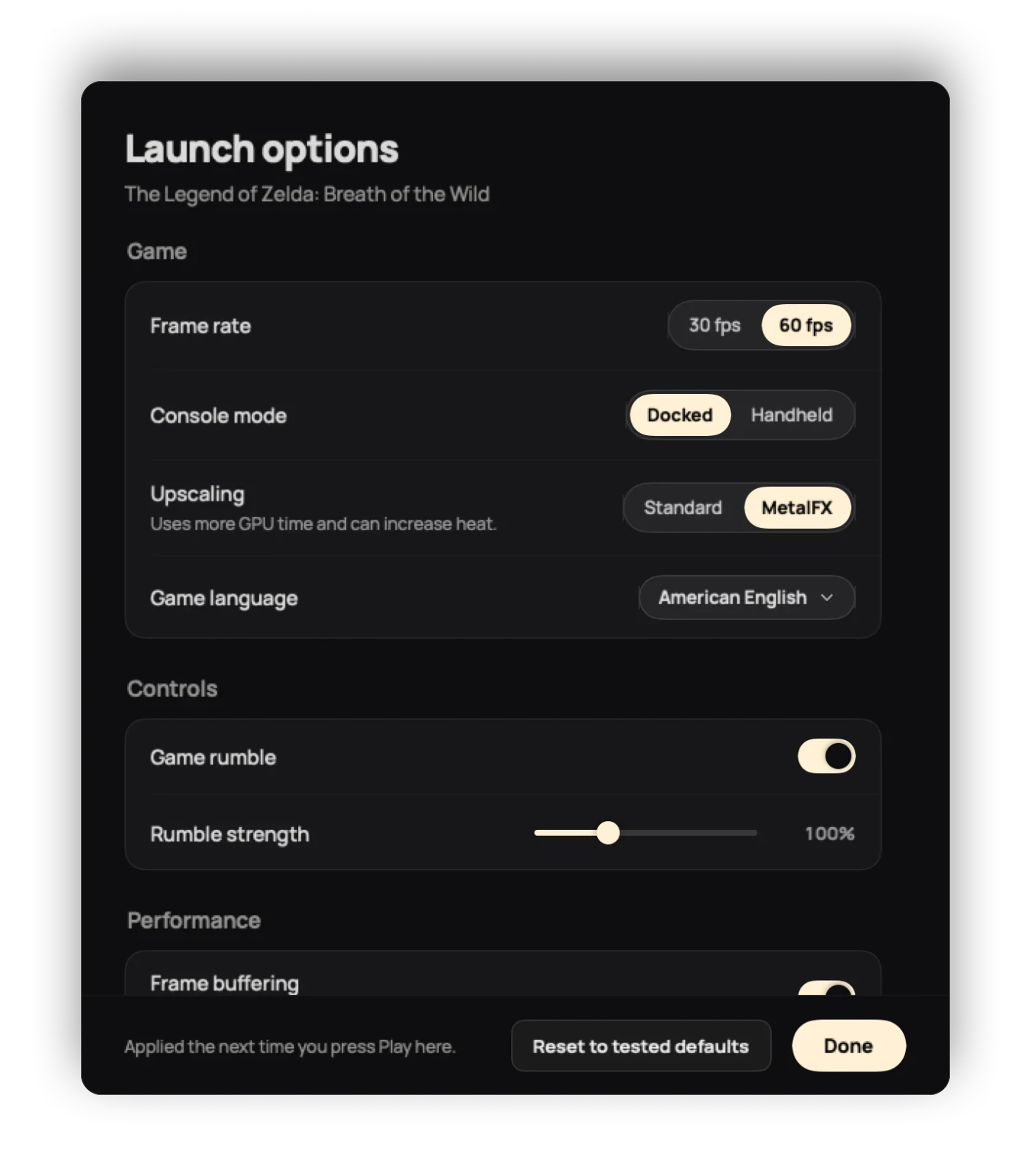
01Frame-rate choice
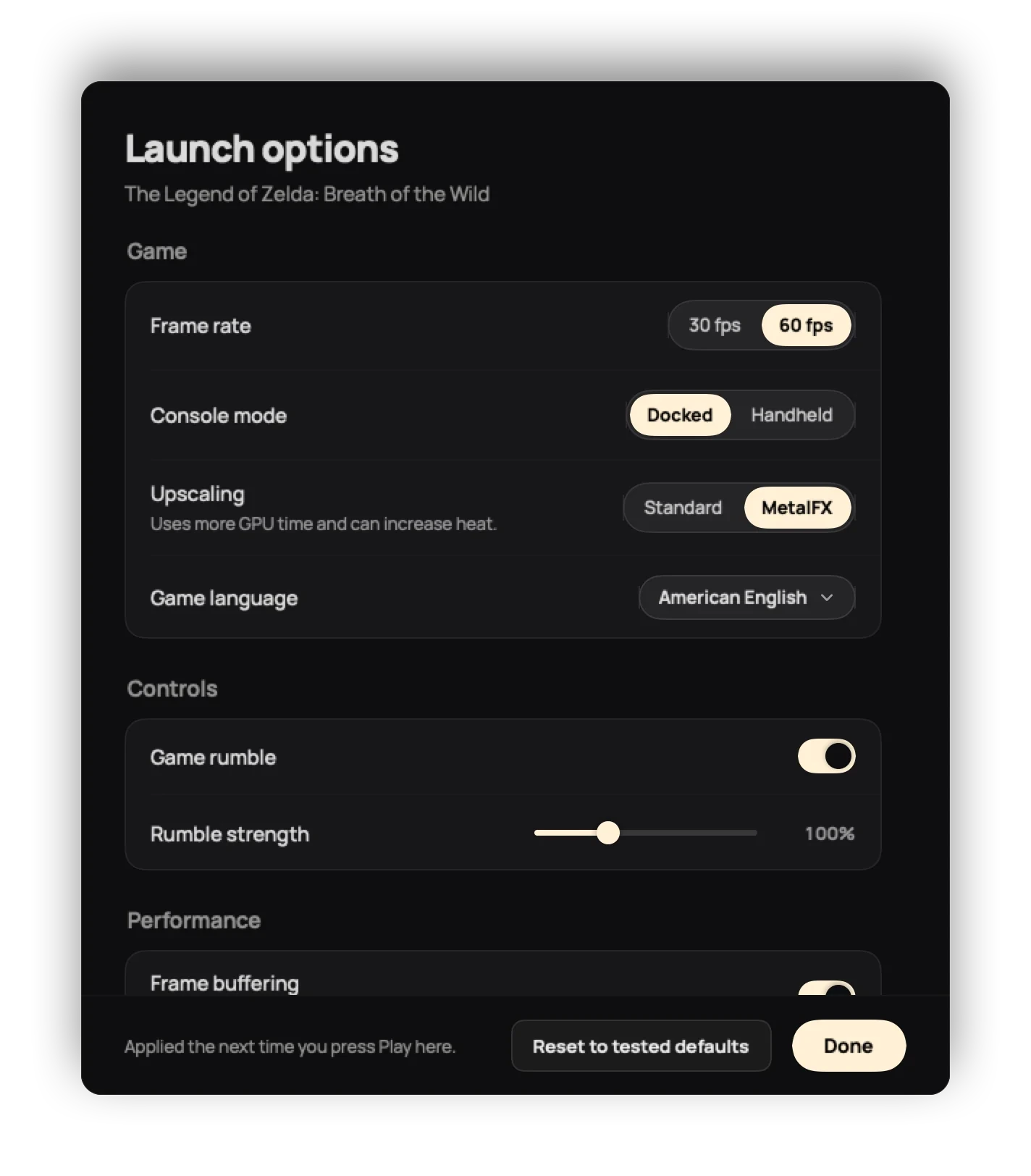
02Upscaling choice
The core Mac app presents a settings window before play. Available options depend on the game profile. Start with its defaults and change one option at a time.
Choose the game’s offered target. 60 is a target, not a promise for every scene. Use 30 to compare power use and pacing.
Render scale changes internal resolution. Console mode changes the game’s docked/handheld behavior; it is a separate choice.
Upscaling and the Mac Performance HUD live here when offered. The phone’s frame-rate-counter option is not the Mac HUD.
env.txt remains overridden until that override is removed.Pair a controller with macOS before launching. DualSense/DualShock 4 motion is documented by the project; do not assume an unmerged controller PR is already included in this revision.
Core settings and precedence · Playing and controller notes ↗
For the core Mac-app output, replace TITLE_ID with the 16-character ID from the lookup. Rise uses 0100B04011742000.
~/Library/Application Support/nxnative/TITLE_ID/TITLE_ID/ ├─ save/ ← saved progress ├─ env.txt ← optional launch overrides ├─ pso_user.tsv ← learned pipeline data └─ …
~/Library/Logs/nxnative/TITLE_ID.logThe previous launch log uses .prev.log. Quit the game and duplicate the whole title-ID data folder to a dated backup before changing source or game version. Keep that copy outside the active folder.
To test a restore, keep the current data folder under another name, put a copy of the backup at the original title-ID location, then launch and check progress. Restore the kept current folder if the test fails. Do not treat pipeline data as a substitute for save/.
A multi-game ARM64 host with per-game profiles, NVN-to-Metal translation and Mac/iOS outputs. It grew from d2r-mobile; it is not the next release of MacNativeGames.
Follow the Rise-specific route →A separate project and script, with its own accepted Zelda versions, tools, settings and save folders. Keep its commands separate from nxnative.
Compare the three builders →Sharing the ARM64 processor family removes one kind of CPU translation, but system services, graphics translation and game-specific fixes still matter. “Native” does not establish universal compatibility or a zero-cost performance advantage over an emulator.