Tears of the Kingdom / MacNativeGames
Build Tears of the Kingdom on Mac
Enter your file paths. Get the command, disk requirements and the exact folders the build writes to.

Your command
Fill in the two required paths to start.
Free space on the work folder’s volume
Where the build writes
FROM FILES TO A MAC APP
Your first build, step by step
Follow these steps in order. If the tools and source are already ready, go to the command generator.
Prepare your Mac and game files
- Apple silicon Mac with macOS 26 or later; 16 GB memory recommended.
- Base game 1.0.0 as XCI or NSP, plus
prod.keys. - A separate update file if you want 1.1.2, 1.2.1 or 1.4.3.
- For NSP: firmware or extracted shared fonts, unless valid fonts are already cached in the work folder.
- 25 GB free for a fresh base build; 40 GB with an update.
Keep an update separate from the base.
Install the build tools
Open Terminal and run the one-time setup commands. An existing Xcode tools installation may report that it is already installed.
If brew --version is not found, install Homebrew from its official instructions ↗ before the brew install line.
xcode-select --install
brew install opus libvpx python@3.14
xcrun --find clang prints a path and python3.14 --version reports Python 3.14.
Optional: compile startup shaders into the app
With Xcode’s Metal toolchain, the build can compile startup shaders into the app. Without it, the script uses the Mac’s Metal cache for the app’s location.
xcodebuild -downloadComponent MetalToolchainGet the matching project source
These commands fetch the project and select the revision used by this wizard. Keep this Terminal window open in the project folder.
git clone https://github.com/ly05010419/MacNativeGames.git
cd MacNativeGames
git checkout b75be8cfa704df3701e86130c8ced268e79d6b11
git rev-parse --short HEAD
git rev-parse --short HEAD prints b75be8c. This folder contains build_app.py.
For a newer revision, read its README before reusing a command. Project source and releases.
Generate, run and open
- Enter your paths above. Choose the input format, game version and font source. Try example paths to see the output first.
- Choose Generate my command, then Copy. Paste it in the Terminal window from step 3.
- Let all four build stages finish. If it stops, match the first error to the recovery guide.
- Open the finished app in Finder. The result panel gives the exact path. Keep the app in its final location to reuse shader caches.
Manual example · base 1.0.0 XCI
Replace the example paths with your files. Run this inside the source folder.
python3.14 build_app.py ~/Games/totk.xci -k ~/keys/prod.keysFind the app: by default it is beside your base game file. A custom output path changes that location.
Read the build’s four stages
The wizard assembles a command; the build itself runs in your Terminal.
- 1 / Code
Extract and verify executable files, then rewrite game code for Apple silicon.
- 2 / Data
Extract RomFS, obtain fonts and apply the selected update.
- 3 / Shaders
Translate startup shaders and compile what the installed Metal toolchain supports.
- 4 / App
Build the launcher, assemble the app and perform the initial macOS checks.
See the log from one recorded 1.4.3 build Stages, elapsed times and the original screenshot
Base 1.0.0 + 1.4.3 update, output in /Applications, Metal toolchain installed. In this recording, shaders took the longest.
| Clock | Elapsed | Stage | Line in Terminal |
|---|---|---|---|
13:20:36 | 0:00 | Start | work folder … (200 GB free on its volume) |
13:20:44 | 0:08 | Start | update identified by verified ExeFS hashes: 1.4.3 |
13:20:44 | 0:08 | 1 · Code | 1/4 code: extracting the ExeFS from the game file |
13:24:44 | 4:08 | 2 · Data | 2/4 data: extracting and verifying the RomFS (17 GB, a minute or two) |
13:25:30 | 4:54 | 2 · Data | 2/4 update: merging base + 1.4.3 and verifying all IVFC levels |
13:28:37 | 8:01 | 3 · Shaders | 3/4 shaders: building SPIRV-Cross with clang |
13:34:35 | 13:59 | 3 · Shaders | 3/4 shaders: compiling 14704 of 15321 startup shaders ahead of time |
13:52:08 | 31:32 | 4 · App | 4/4 app: building the game binary and the launcher |
13:54:12 | 33:36 | 4 · App | 4/4 app: assembling /Applications/Tears of the Kingdom.app |
13:59:44 | 39:08 | 4 · App | 4/4 app: macOS checks the new app once (a few minutes for the 16 GB bundle) |
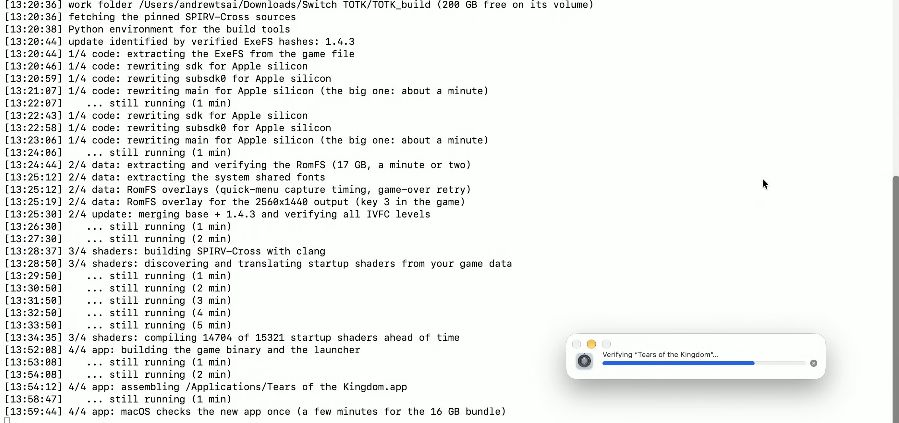 Open the original Terminal screenshot ↗
 If it stops, keep the first error and the stage name. Find the matching error and recovery steps.
Open the finished app
Open the output folder shown by your command, then double-click Tears of the Kingdom.
The first start checks the game data inside the app (about 17.1 GB in this recording). Leave the window open until the game appears.
View the recorded verification message ↗After the first launch
- New shader variants can briefly stall on first use. Repeating the same scene can reuse compiled variants.
- For update builds, the project backs up the old profile before switching versions.
- Create a controller layout if button positions or hold actions do not suit you.
- Choose picture and frame-rate settings once the game opens.
- Before switching versions or adding mods, back up your save profile.