Use the matching update
The project records World of Light, Smash matches, DLC, sound, photos and save/reload. Keep this update with its own verified build inputs.
SMASH ULTIMATE / NATIVE MAC BUILD
Build the Mac app from your own game files.
Your own files
prod.keysA base NSP also needs system fonts.
| Input | Match | How to use it |
|---|---|---|
| Base game | 1.0.0 · 01006A800016E000 | Your own XCI card image. A base NSP also works when you provide system fonts. |
| Update | 13.0.2 or 13.0.5 · 01006A800016E800 | Separate update NSP. The script identifies its ExeFS hashes, rather than trusting the filename. |
| Keys / fonts | Your own prod.keys | XCI can supply its system-update fonts. For base NSP, add --firmware or a verified --shared-fonts folder. |
| DLC | Your purchased fighter/costume packages | Optional owned dumps; add at build time or through the Mac app’s DLC menu. |
This guide is the MacNativeGames SSBU target. Its runtime and scripts live inside games/ssbu. The top-level TOTK wizard is not its build command. This source has no iPhone/iPad build: Smash loads 98 code modules while running, which this iOS route cannot load.
The project records World of Light, Smash matches, DLC, sound, photos and save/reload. Keep this update with its own verified build inputs.
The source supports a separate verified main executable for 13.0.5. It reuses the same 98 fighter/stage/mode modules; renaming a 13.0.2 package will not make it this update.
Use an Apple silicon Mac with macOS 26 or later. Install full Xcode, finish its first-run setup and make its Metal compiler available. Command Line Tools alone do not meet this target’s stated toolchain requirement.
xcodebuild -downloadComponent MetalToolchainUse native Apple silicon Homebrew and Python 3.14. The build checks the libraries under /opt/homebrew/opt; an Intel Homebrew installation is a different prefix.
brew install python@3.14 opus libvpx libvorbis liboggThe script asks for about 30 GB free for a fresh workspace. Its game resource image is about 17.6 GB. On the same APFS volume, the app uses a clone of those resources; copying to another volume needs additional space. Keep work, source and output paths outside temporary or cloud-synced folders.
The following checkout matches this guide. Run it in a new source folder, then stay inside games/ssbu.
git clone https://github.com/ly05010419/MacNativeGames.git
cd MacNativeGames
git checkout 32d8643554d2f106b60fa7c5a0d6e57cf16aca49
cd games/ssbuThe example uses the 13.0.5 update and an XCI base. For 13.0.2, select your actual 13.0.2 NSP instead. Keep base and update as separate inputs.
python3.14 scripts/build_ssbu.py \
  --game "$HOME/Games/Smash/base.xci" \
  --update "$HOME/Games/Smash/update-13.0.5.nsp" \
  --keys "$HOME/keys/prod.keys" \
--out "$HOME/Applications/Super Smash Bros. Ultimate.app"--game with its path and add --firmware "$HOME/Games/firmware-nca", pointing to your unpacked firmware NCA folder.--shared-fonts "/path/to/verified-shared-fonts". It must contain the verified manifest and six font files, not an arbitrary font directory.nsz -D; the builder takes an NSP update.--work "$HOME/Games/SSBU-work" to change the work location. Default: games/ssbu/SSBU_build.--dlc "$HOME/Games/Smash/DLC".The build identifies the update, verifies game inputs, rewrites code/modules, extracts resources/fonts and prepares startup shaders. A later build reuses verified steps. If the game is running from the workspace, the build waits for it to close.
The example writes to ~/Applications/Super Smash Bros. Ultimate.app. Without --out, the app goes next to the base game file. Open that app, check sound and input, then try a short match before changing settings. Use the macOS first-open guide for a specific launch warning.
32d8643: exact flags, input checks, work-space guard and output path ↗
Start at 1080p. Check sound, movement and attacks before changing the picture.
Then choose 2K, restart and compare the same fighters and stage. MetalFX upscales the finished image to the window; it is separate from the source render size.
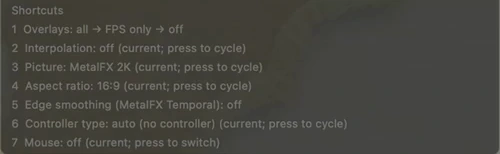
Separate overlay shortcuts from render-size selection
English overlay from the 24 October 13.0.2 demonstration, 0:03. Key 3 controls upscaling; use the Picture menu for the base render size. The table below gives the full shortcut descriptions.
Image source ↗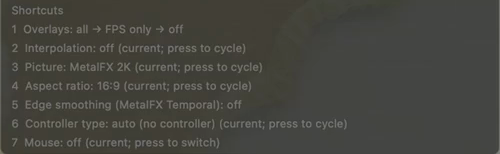 Open full-size image ↗
| Control | Action |
|---|---|
| 1 | Cycle all overlays → FPS only → off. The FPS line includes picture size and MetalFX. |
| 2 | Frame interpolation produces no additional frames in this target. Leave it off. |
| 3 | Toggle MetalFX upscaling of the finished picture. |
| 4 | Change picture aspect ratio in the window. |
| 5 | Toggle MetalFX Temporal edge smoothing. |
| 6 | Choose automatic or a fixed controller type. |
| 7 | Toggle mouse mode. |
The project’s older M1 Max 64 GB/macOS 27 record covers 1–2 hour 2K sessions. Its later M5 32 GB/macOS 27.2 record covers 13.0.5 matches with MetalFX on/off. For your first setup, keep the same scene and change one option at a time rather than treating either machine’s result as a preset for every Mac.
The source maps recognized devices as a Pro Controller and also has a direct HID path for some pads, including PowerA. Follow Mac pairing and connection fixes if the device is absent.
The Mac host’s numbered shortcuts are separate from Smash’s own in-game control settings. Changing a controller type does not change an unrelated game’s keyboard file.
Put your own DLC dumps in one stable folder. The build can include it with --dlc; packages are verified with your keys.
While the app runs, open DLC → Choose DLC Folder… and select that folder. The menu reports the number of DLC packages and fighters it found. Use the same menu to enable or disable DLC.
The selection applies at the next start. Relaunch and check the game’s announcement and fighter selection. An unchanged session will not reload the new folder immediately.
The source’s online menu returns to offline play. DLC packages add owned content; they do not enable online services or Labo VR.
~/Library/Application Support/MacNativeGames/SSBU~/Library/Logs/MacNativeGames/ssbu.log~/Pictures/Super Smash Bros. UltimateWait for the save operation, then quit before copying files.
Press ⌘⇧G, paste the game-state path above and copy the complete SSBU folder to an external backup location. Include the game version and date in its name.
Use a separate output app/workspace and the intended update. Both apps still use the same default SSBU state, so another app filename is not save isolation. Keep the old app and backup until the expected World of Light or other progress loads.
Close the game. Rename the current state folder to keep it, copy the backup back as SSBU under MacNativeGames, then launch the matching game version and load the expected slot. Keep the original backup unchanged.
For an update, changing the source revision and changing the game patch are separate actions. Start with one change, rebuild into a separate output and check the same save before continuing.
For a report, include Mac/chip/memory, macOS, source revision, game update, selected picture mode and the first error from the build or session log. Attach the relevant screen, not game packages, keys or the compiled game.
11 November 2026 · MacNativeGames source 32d8643 · Game 13.0.2 / 13.0.5 · Apple silicon, macOS 26+.
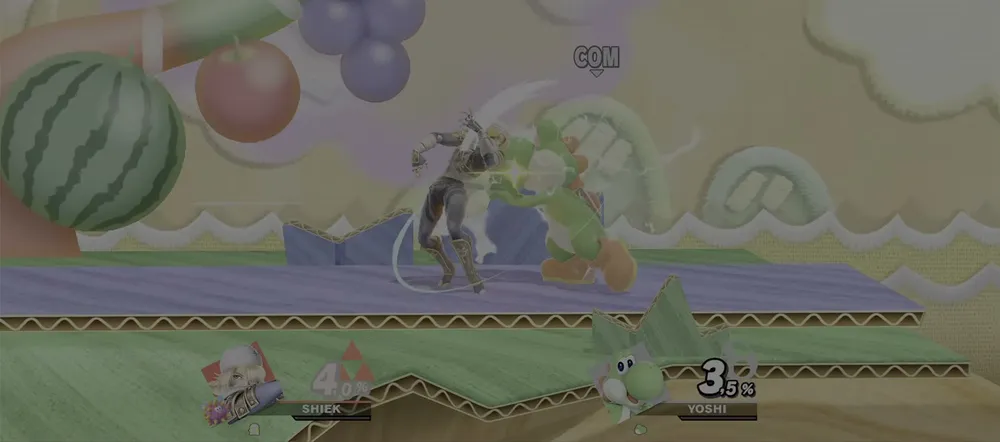
The game and English overlay excerpts are cropped from that demonstration to remove the desktop and profile. The key 3 picture/upscaling label is explained beside the image; current settings follow the pinned source. Game images belong to Nintendo and the respective rights holders.