OCARINA OF TIME 3D / MAC PREVIEW
Ocarina ReTuned on Mac: install Ocarina of Time 3D
Ocarina ReTuned brings the 3DS version of Ocarina of Time to an Apple silicon Mac with a single-screen interface. Download the app, choose your own decrypted 3DS ROM and let it prepare the game locally.
Download Mac 0.6.9 ↗Check requirements ↓
Mac package 0.6.9 · included in Preview v0.7.1 · guide source fecb9f9 · 14 November 2026.
Start with a Mac and the right version of the game
This route uses Ocarina of Time 3D for Nintendo 3DS. A Nintendo 64 ROM belongs in Ship of Harkinian; a Switch 2 game package belongs to a different project.
- Apple silicon and macOS 15 or later. The Mac preview is an ARM64 app; this guide does not use a Windows download through CrossOver.
- Your own supported, decrypted USA or European ROM. Choose a
.3dsor.ccifile. Renaming an encrypted or unsupported dump does not change its contents. - Apple C++ command-line tools, CMake and Ninja. Local preparation compiles a game module. The 0.6.9 ZIP includes the preparation toolkit and Python, but its contents do not include the CMake or Ninja executables.
If the Apple tools are missing, run this in Terminal and complete Apple's installer:
xcode-select --installCheck the other two build tools in Terminal:
cmake --version
ninja --version
If either command is missing and you already use Homebrew, install both tools, then quit and reopen ReTuned:
brew install cmake ninjaThe project's setup document says Mac 0.6.6 bundled these tools. Our check of this 0.6.9 ZIP found neither executable; its first tool check reported a missing CMake. Its setup script searches the normal Homebrew locations and /Applications/CMake.app/Contents/bin. CMake install command ↗ · Ninja install command ↗
Full Xcode is needed for ReTuned's separate iPhone/Apple TV preparation route. The ordinary Mac app needs the command-line tools. Mac requirements ↗
Download the Mac ZIP, then keep the complete app
Ocarina-ReTuned-0.6.9-Mac.zip
85,021,409 bytes · Apple silicon · Preview
Use the Mac asset on the release page
Open Preview v0.7.1, expand Assets and choose the filename above. The release is a Linux hotfix: its label is 0.7.1, while its Mac package is 0.6.9. GitHub's Source code archives are for developers.
Expand the ZIP and move the app to Applications
Keep the whole Ocarina ReTuned.app bundle together. Open that installed copy. Unlike the SoH route, these instructions do not use a SoH disk image or an OTR archive.
Open the app and reach First-time setup
The preview is ad-hoc signed and is not notarized. If macOS stops it, use the steps for the exact macOS message, then reopen the app. Before preparing your ROM, check Apple's tools, CMake and Ninja.
Check that your downloaded ZIP matches this Mac package
Run this with the ZIP still in Downloads. If it is elsewhere, replace the quoted path with its actual location.
shasum -a 256 "$HOME/Downloads/Ocarina-ReTuned-0.6.9-Mac.zip"Compare the complete hash with this value from the official release asset:
93f4b7ec6d1b9b33cfb317413c5722dc270cd0f82615a545c23033150ebaa0f2A different package version has a different hash. If this same filename does not match, download it again from the original release.
Choose your ROM and prepare the game once
First-time setup comes before the game startup screen. It prepares your game on the Mac; the download itself does not include a prepared game module.
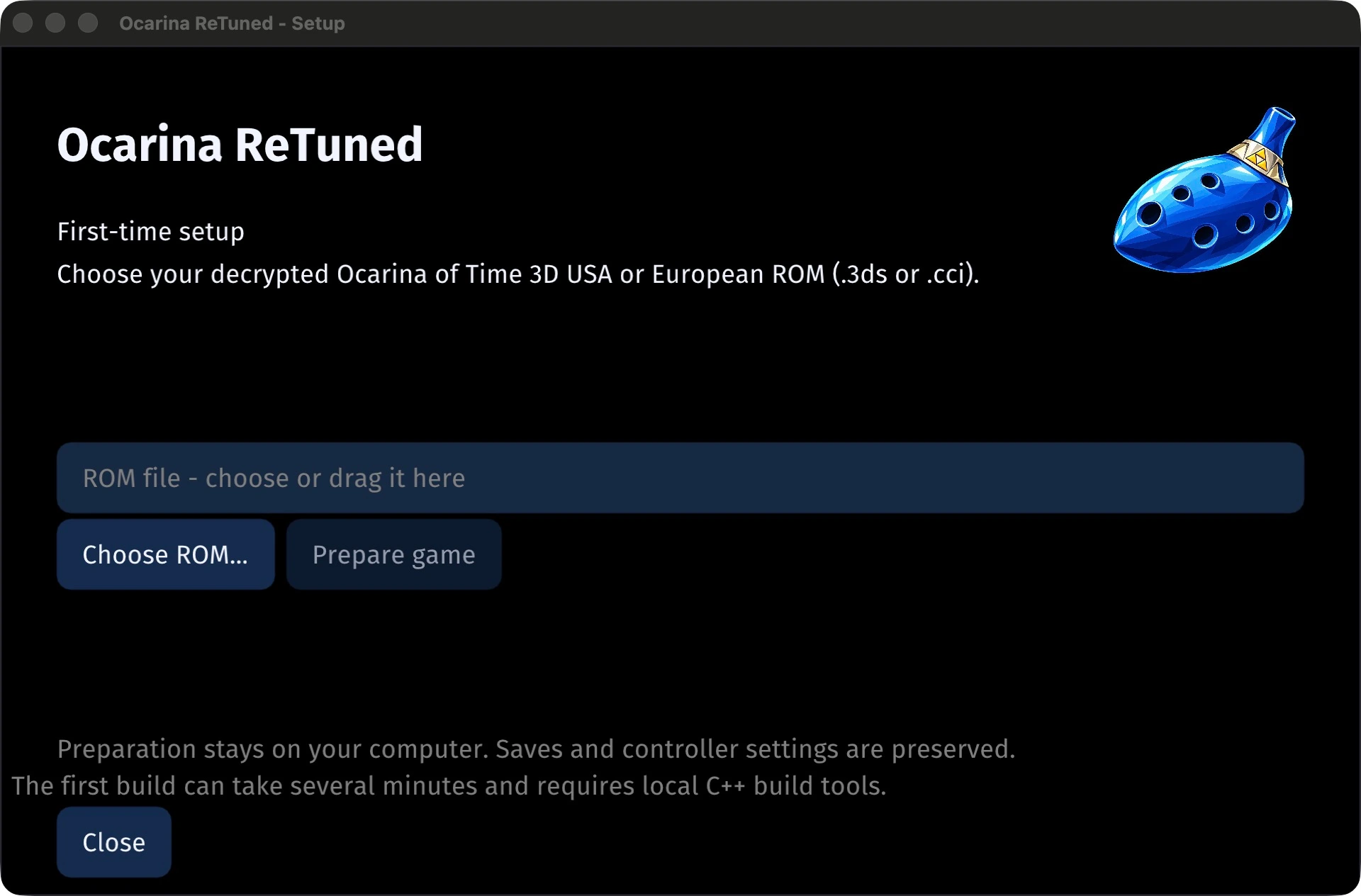
Choose the ROM first, then start preparation
Choose ROM... opens file selection. Prepare game becomes available after you enter or select a path. You can also type the full path or drag your supported ROM into the input.
Image source ↗View the complete first-time setup window
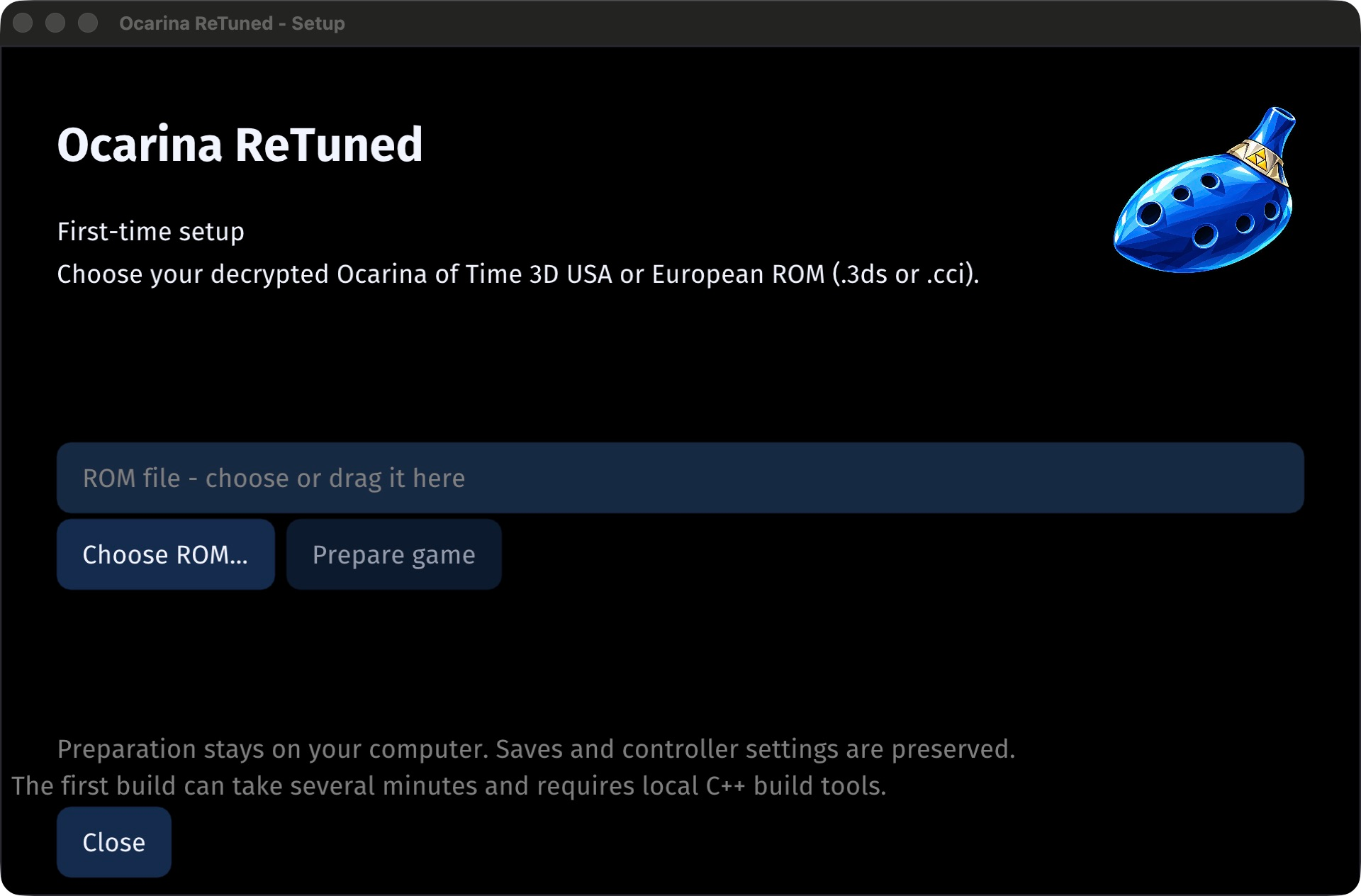 Open full-size image ↗
Select the original decrypted 3DS file
Choose Choose ROM... and select your supported
.3dsor.cci. Alternatively, type its full path in the ROM field or drop the file there. Preparation checks the contents, not just the extension.Choose Prepare game and follow the stage name
Leave the app open while it checks the input, prepares resources, translates the code and compiles the native module. The first preparation may have no useful time estimate yet.
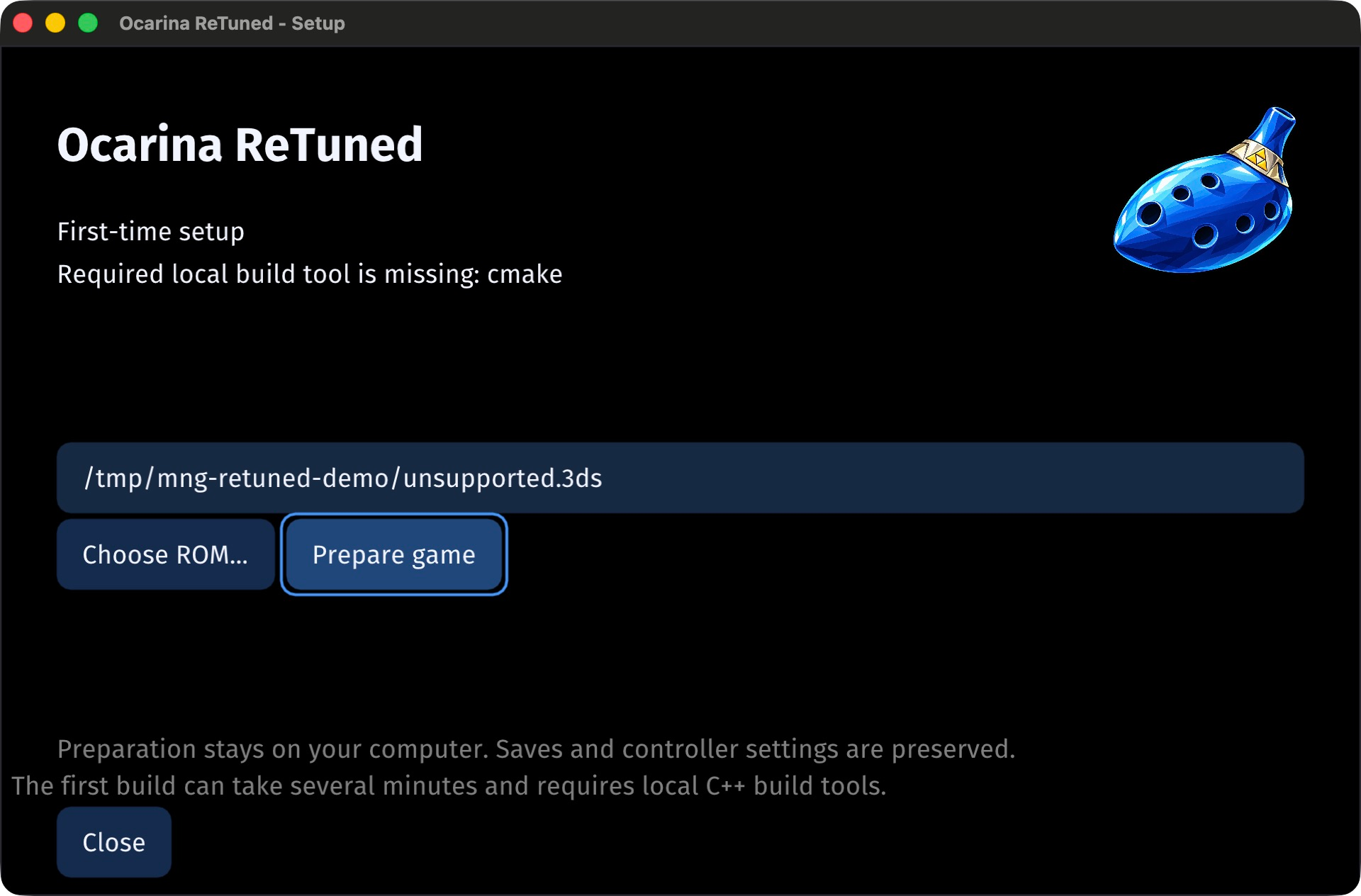
If setup stops at Required local build tool is missing: cmake, install the missing tools, then reopen the app and retry.
Let verification and activation finish
Preparation checks the completed module before switching the launch profile to it. When setup finishes successfully, continue to ReTuned's startup screen and choose Start game.
- 1–2Check & extractVerify your tools and the original input.
- 3–5Prepare resourcesNormalize data and apply the bundled interface.
- 6–7Translate & compileBuild the native module on your Mac.
- 8–9Verify & activateCheck the output, then publish the new profile.
The stage bar counts milestones, not percentage of elapsed time. A long compile stage does not mean the last few stages take the same time. To stop, use Cancel setup and let the current work stop; the preparation transaction keeps the previous installation and saves.
Preparation and cancellation behavior ↗ · Stage names and buttons ↗
Use the ReTuned menus for graphics and controls
Open Settings from ReTuned's startup screen. Begin with the standard single-screen layout before adding a texture pack or changing several picture options.
- Settings → Controls
- Map your controller and game actions. Test movement, confirm and cancel before changing more bindings.
- Settings → Graphics
- Resolution, frame-rate interpolation and custom textures. Change one picture option, then compare the same scene.
- Settings → HUD → Dialogue font
- Choose Regular or Bold. Restart the app after changing it so text uses the selected font.
HD fonts and world textures are separate
The preview includes the dialogue fonts. For a separate world-texture pack, use Settings → Graphics → Custom textures → Choose texture folder. Choose the extracted folder, then Select this folder; its subfolders are searched too.
- Changing the texture folder does not require preparing the ROM again.
- Keep a separately chosen texture folder in place when moving or updating the app.
- Frame-rate interpolation is a graphics choice; a 60 FPS option is not a measured frame-rate result for your Mac.
Update the app and its prepared game separately
- Save and quitClose ReTuned before replacing its app or copying its data folder.
- Keep a dated backupRetain the old ZIP/app and a separate copy of its matching data.
- Install the next Mac packageUse that release's actual Mac asset; it may differ from the release label.
- Finish preparation, then compareAllow any required update to complete. Load the same save before changing settings.
Need to request preparation again?
Before starting gameplay, choose Settings → General → Update game preparation. It can reuse verified local inputs; if those are unavailable, select the original ROM again. The option is disabled during gameplay, so save and reopen the app first.
Newer preparation kits can detect changed inputs and start an update automatically. A failed or cancelled update retains the previous installation; a required update must finish before that game is loaded. An old version number in the startup footer alone does not identify which Mac ZIP you installed.
Keep the data folder when replacing the app
A normal Finder launch uses this separate folder. Open Finder, press Shift + Command + G, then paste the path:
~/Library/Application Support/Ocarina ReTunedApplications
Ocarina ReTuned.app holds the program and preparation tools.
Application Support
Prepared game data, the launch profile, settings and local progress live outside the app.
- Quit the game and copy the whole data folder to a separate, dated backup location.
- Keep the original app ZIP with that backup, so its package version remains identifiable.
- Back up texture packs stored elsewhere separately. The app's saved folder selection is not a second copy of the pack.
Deleting this data folder to repair a setting also removes the local game setup and progress. Keep your backup and diagnose the failed stage first. A custom --launch-profile can use another data root; the path above is for the normal app launch.
Match the failure before changing your files
The app is blocked before First-time setup
Use the exact macOS opening message. Recheck the source and file hash before approving a downloaded copy. Repeating ROM selection cannot fix a system opening block.
Prepare game is disabled, or the ROM is rejected
- Enter or select the actual file path before choosing Prepare game.
- Use a supported decrypted USA/EUR Ocarina of Time 3D dump. A N64 ROM, encrypted package, archive or another game's file is a different input.
- Keep the original error. Changing an extension or skipping identity checks cannot make unsupported contents compatible.
- Return to the ROM field, choose the correct original and try preparation again.
Required local build tool is missing: cmake
The Mac 0.6.9 ZIP needs CMake and Ninja installed separately. Check both tools and install what is missing. Quit and reopen ReTuned, then select your supported original ROM and choose Prepare game again.
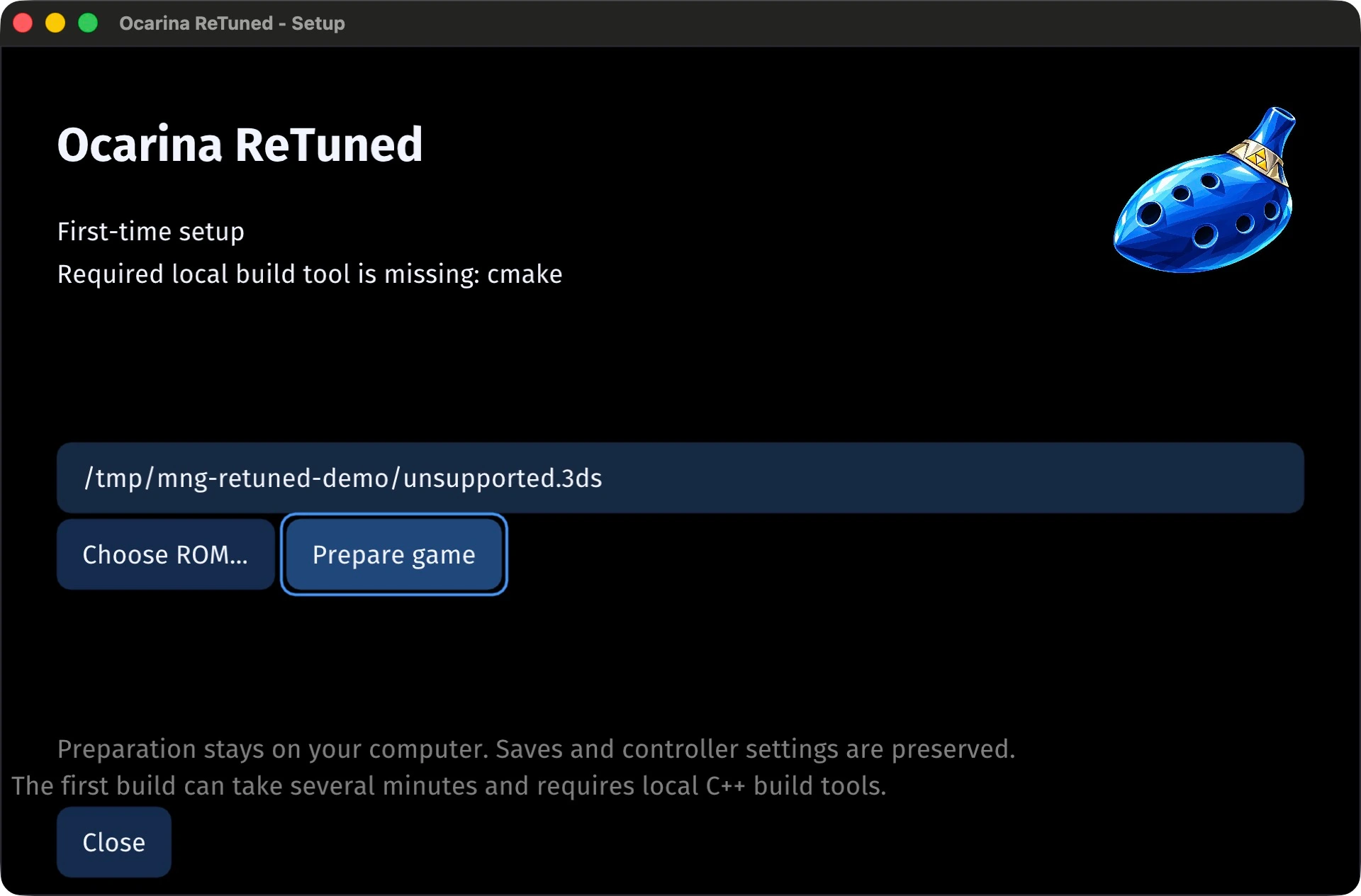
Read the reported failure before replacing any game data
This Mac had no CMake installed. A synthetic text file named unsupported.3ds was entered for the check; no game ROM was used. Setup stopped at the missing-tool check before ROM validation. Install the missing tools, reopen the app and select your supported original ROM.
Image source ↗View the complete tool-check window
 Open full-size image ↗
The tools are installed, but compilation fails
Keep the entire app bundle together and avoid combining a host from one preview with another preview's toolkit. For a compiler error, read the actual error in setup.log before changing settings. If the app package itself is incomplete, reinstall the same complete Mac ZIP while retaining the separate data backup.
The progress bar pauses or shows no time estimate
Read the stage name. Translation and compilation can take longer than the earlier checks, and the bar is not a time percentage. First-run estimates need local timing data.
If it reports an error, use the log below. To stop intentionally, choose Cancel setup rather than deleting the data folder.
An update fails, or asks for the ROM again
Keep the data backup. Verified inputs may need refreshing even though your saves remain. Select your supported original again, let preparation finish, then compare the same save. If a changed setting or texture pack preceded the failure, return that one choice to its previous value.
Retain the old package and its matching backup while investigating. Do not merge arbitrary files from different prepared installations.
Find the preparation log
~/Library/Application Support/Ocarina ReTuned/setup.logIf setup stopped before a log could be written, keep the on-screen message. Include your Mac package filename, system version, input region and failed stage when opening an upstream issue.
Copy a short support report
Ocarina ReTuned Mac package: 0.6.9 (or your actual ZIP filename)
Release tag: v0.7.1 (or the release you downloaded)
macOS version / Apple chip:
Stage: opening / ROM selection / preparation / startup / settings / update
ROM region and revision (no game file attached):
Exact on-screen message:
Last action before the failure:
Changed settings or texture packs:
Relevant setup.log lines:
What happened after reopening the app:
Which Ocarina project matches your game?
“Remake” and “recomp” searches can lead to different games and toolchains. Start with the edition you own.
| Your game | Project | Continue |
|---|---|---|
| 3DS · Ocarina of Time 3D | Ocarina ReTuned | Install this Mac preview |
| N64 / supported GameCube ROM | Ship of Harkinian | Follow the SoH Mac guide |
| Switch 2 · remake 1.1.1 | NX2navi | Check its Windows/Linux build and Mac alternatives |
Zelda 64: Recompiled is another project. Its published v1.2.2 builds support Majora's Mask; its official README still describes Ocarina of Time support as in development. Check that project's current status ↗
Original downloads and instructions
- ReTuned Preview v0.7.1 release and Mac assets — use the actual Mac filename, 0.6.9.
- Project README at fecb9f9 — platforms, inputs, controls and fonts.
- Local ROM preparation — stages, updates, transaction behavior and texture folders.
- Regional support — supported inputs and planned regions.
- Mac launcher data-root handling and first-run controls.
Interface images show the actual Mac 0.6.9 first-time setup window, including its missing-tool check. Menu and preparation diagrams explain the linked project's documented controls.