Lichii is an experimental Switch and Switch 2 emulator. Install its Apple silicon Mac app, add your own game and system files, or copy an existing Eden setup into its separate profile.
Use the Linux aarch64 build, with glibc 2.39+. It is a different package from the Apple silicon Mac app.
PGO means profile-guided optimization. The author recommends these builds where the CPU supports them; the Windows profile was trained on Ocarina of Time. Standard builds are also on the release page.
Check the Mac ZIP before installing it
In Terminal, run this against the unmodified build-316 ZIP in Downloads:
Compute the Mac ZIP SHA-256
shasum -a 256 "$HOME/Downloads/lichii-macos-arm64.zip"
For another release or asset, use its own digest. Get a fresh copy from Releases if this exact ZIP differs.
The author lists GitHub Releases as the download source. lichii.zortos.me is the project's compatibility-report site. The README identifies lichii.org as an unrelated site and reports a malware risk there.
Install the app, then add your own files
Put the Mac app in Applications
Open the DMG and drag lichii.app into Applications. With the ZIP, extract it first, then move the app into Applications. Open that copy. If an Eden profile is detected, complete the import choice before configuring the new app.
Match any macOS message
This release is not notarized. For an unidentified-developer or “Apple cannot check” message, first confirm the original download. Apple's documented exception is System Settings → Privacy & Security → Open Anyway, followed by confirmation, when you choose to trust that app. A damaged-app or malware message needs a different check; keep the exact message.
Install your decryption keys and firmware
Use Tools → Install Decryption Keys to choose your own prod.keys. Use Tools → Install Firmware → From Folder or From ZIP for your firmware dump. Game, key and firmware files come from your own console; the application package does not include them.
Add the folder holding your games
Use the library's add-folder control and select your game directory. Wait for the scan, then check that the intended game and version appear. Keep its matching base files and update together in your records.
Set up controls and graphics
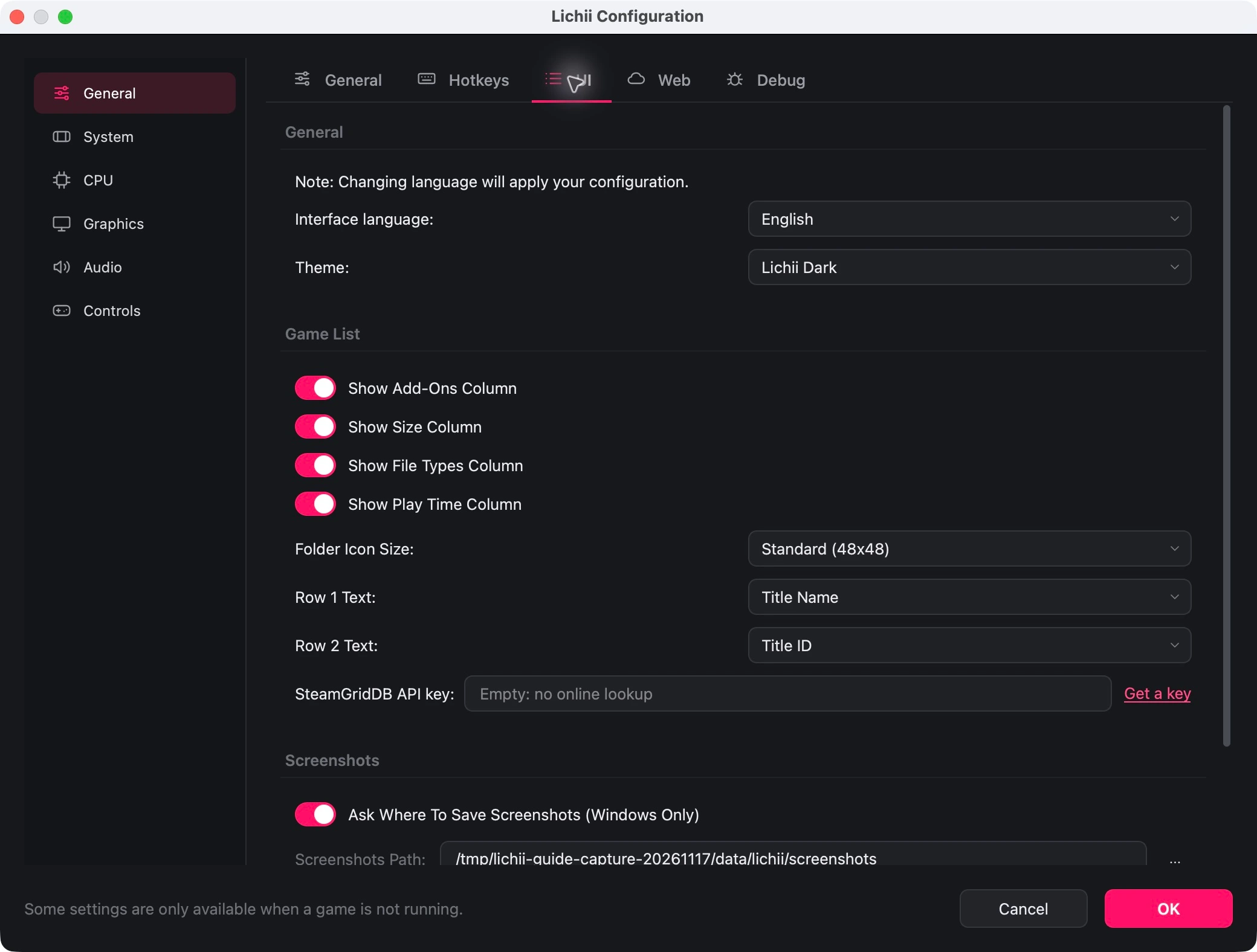
Open Emulation → Configure…, then Controls. On macOS, open lichii → Preferences… to reach the same configuration window. Choose the input device and check its mappings. In Graphics, choose the available renderer and device; the Mac Vulkan route uses MoltenVK to reach Metal.
Open the game and check a save
Choose the user profile you intend to keep using. For an imported setup, load the expected progress before continuing. For a new setup, create a save, quit the game, then keep your first independent backup.
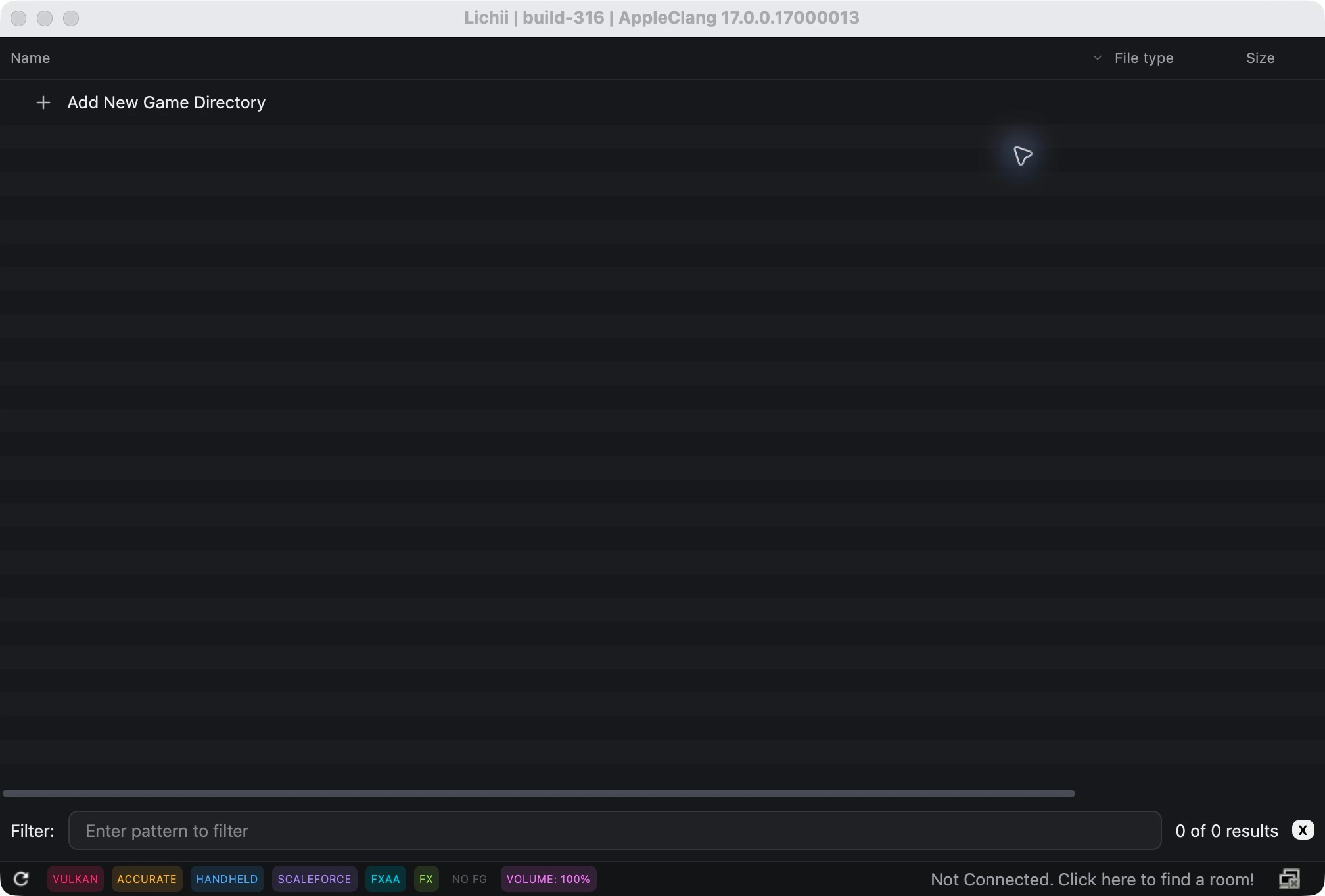
Choose Add New Game Directory to scan your own folder.
Add the folder holding your games
The English build-316 library before a game directory is added. Use Add New Game Directory after installing your own keys and firmware.
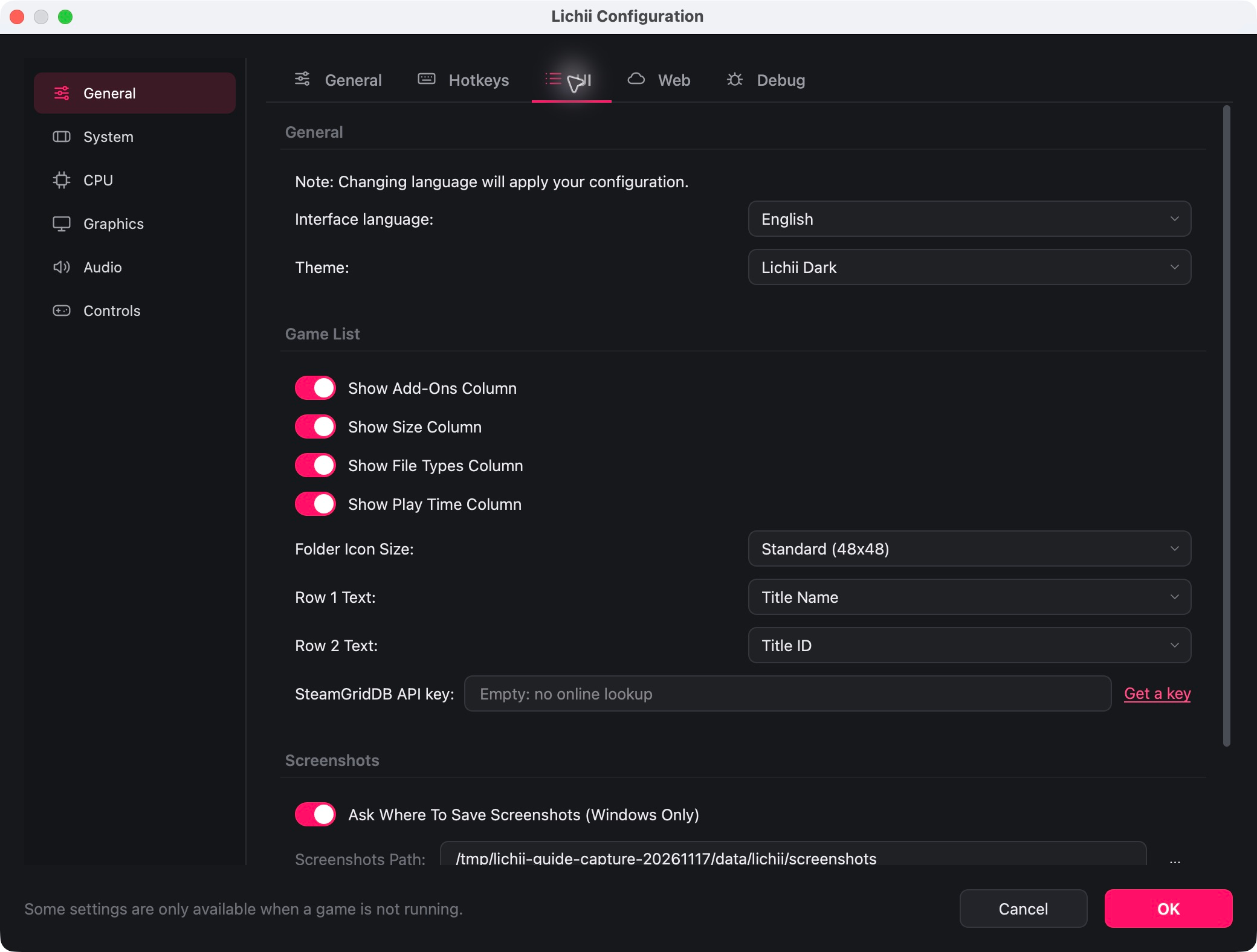
On Mac, open lichii → Preferences…. The left side separates Graphics from Controls. To match the English labels in this guide, choose General → UI → Interface language → English.
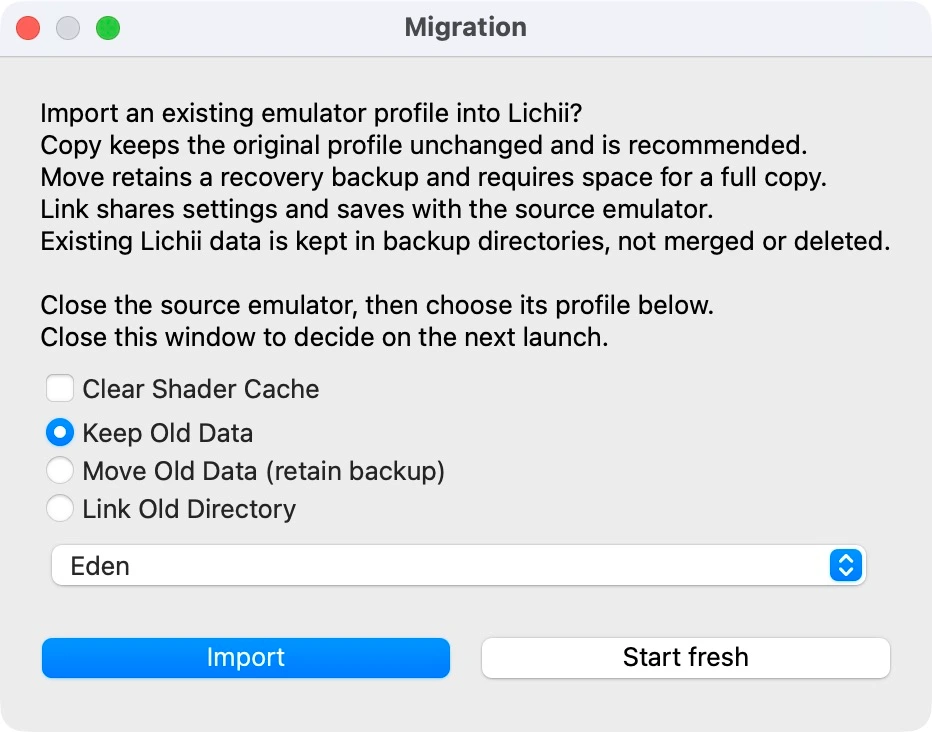
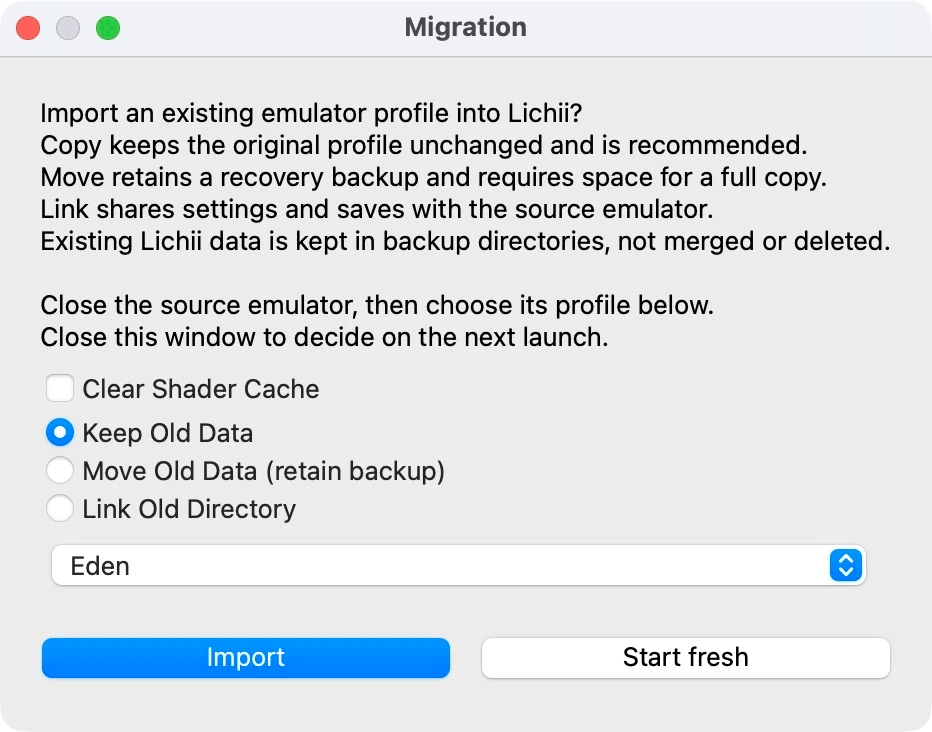
Choose Keep Old Data to copy an entire Eden profile and keep its original. If the chooser never appeared or you only need one game, move that game’s save.
Keep Old Data makes a separate copy.
Select Eden, then choose Import.
Choose Eden and Keep Old Data
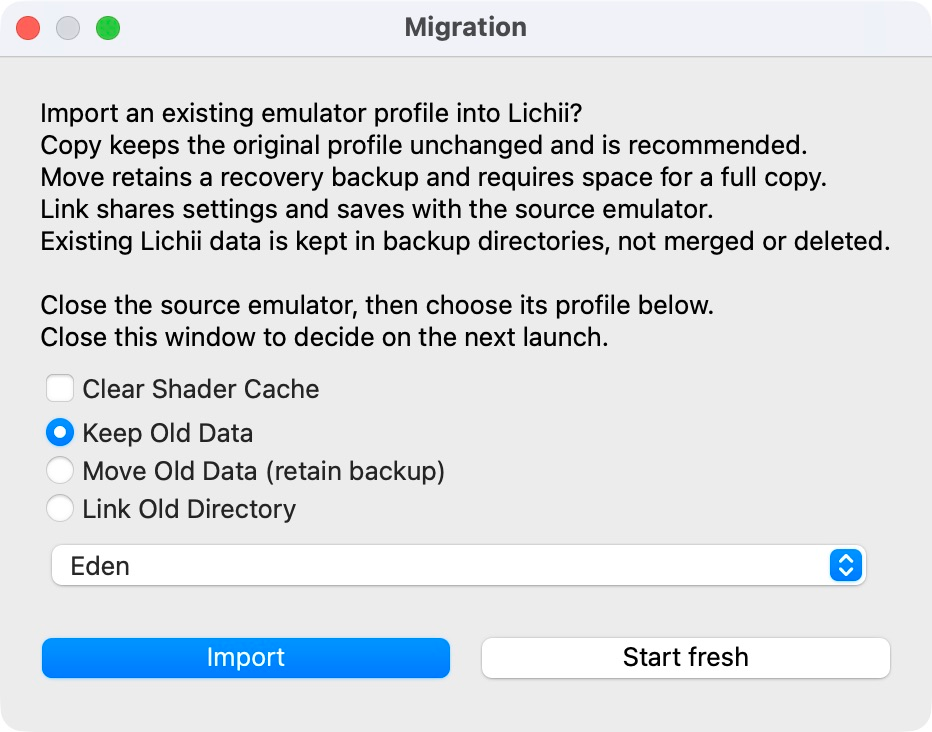
The real first-start chooser, with an example Eden profile. Keep Old Data copies the source; Import begins that operation.
Check custom save, NAND and Mods paths before copying. Paths inside Eden’s data root point to the Lichii copy after import. Absolute paths outside that root can still point both apps to the same files.
Back up the old profile
On Windows, copy the complete %APPDATA%\eden folder to a separate backup location. On Mac or Linux, back up the Eden data, configuration and cache directories in the path table. Also preserve any custom save or NAND location outside those roots.
Open Lichii without portable mode
The chooser appears on the first unresolved, non-portable GUI start when an old profile is found. Select Eden in its source list. Closing the chooser postpones the import until the next launch.
Leave Keep Old Data selected
This copies the source. For a detected Eden profile, Clear Shader Cache starts unchecked; other sources can have a different default. Clearing shader cache affects shader preparation, rather than deleting saved progress.
Choose Import and wait for completion
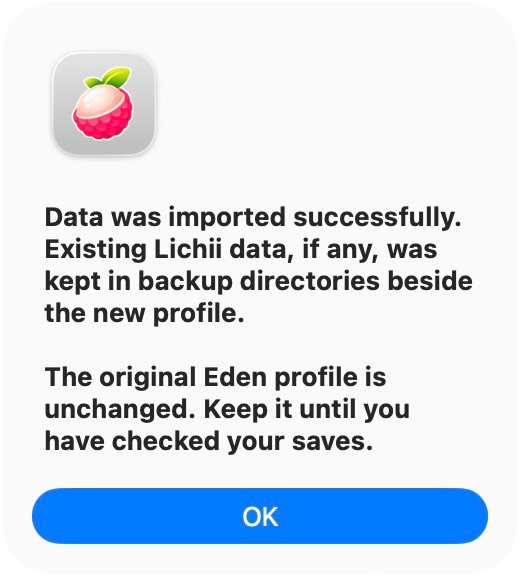
The operation stages and checks the copy before using it. Existing Lichii data is kept in adjacent backup directories. Wait for the completion dialog; the source Eden profile remains in place.
Check the destination, then the progress
Check the active user and the same game's save location in Lichii. Open the game, load the expected slot, save, quit and reopen it. Keep the Eden source and pre-import backups until those checks match.
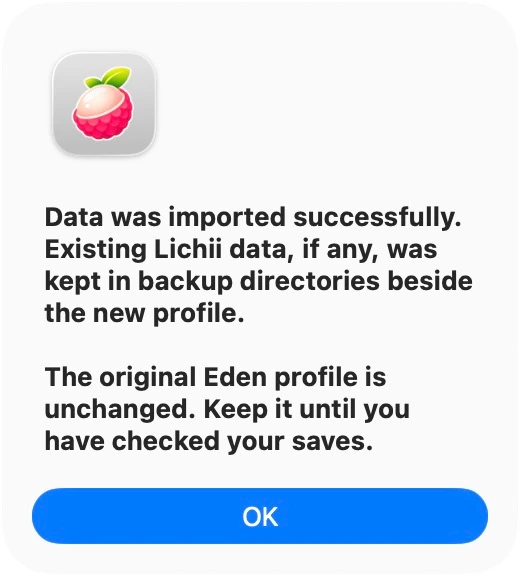
Read the source and backup message before continuing.
Keep the original after the copy completes
Completion of an example-profile copy in build-316. The message identifies that the original Eden profile remains unchanged and that existing Lichii data was backed up.
Imports the profile and renames the original into recovery-backup directories at its old location. It still needs room for a full copy. A linked source root cannot use Move.
Link Old Directory
Shares settings and saves with Eden. Changes through either app affect the shared files. Its shader cache is not cleared during import.
Start fresh
Marks the import choice as resolved and uses Lichii's own profile. Eden's old data stays where it was.
Find the active profile, saves and cache
Use File → Open Lichii Folders to reach the active locations. Default paths below apply without XDG overrides or portable mode. The game's context-menu save location is the quickest way to confirm the selected game and user.
Windows
Lichii data and settings
%APPDATA%\lichii
Configuration
%APPDATA%\lichii\config
Cache
%APPDATA%\lichii\cache
Old Eden profile
%APPDATA%\eden
Mac and Linux
Data: NAND, saves, keys and Mods
~/.local/share/lichii
Configuration
~/.config/lichii
Cache
~/.cache/lichii
Old Eden roots
~/.local/share/eden~/.config/eden~/.cache/eden
Open the default Mac data folder
In Finder, press Shift–Command–G and paste:
Default Mac Lichii data folder
~/.local/share/lichii
Use ~/.config/lichii for settings and ~/.cache/lichii for cache. If you set XDG_DATA_HOME, XDG_CONFIG_HOME or XDG_CACHE_HOME, use its corresponding directory instead.
How does portable mode change these paths?
Windows checks for a user directory beside the executable. Unix, including macOS, checks for user under the current working directory. When found, that directory takes priority, with configuration under user/config and cache under user/cache. Portable mode skips the first-start profile import.
Follow the location opened by the app. A folder placed beside the Mac app is not automatically the current working directory of a Finder launch.
Move one game's progress instead of a whole profile
Use the same game and the intended user on both sides. This route copies a game's complete save files; it does not transfer emulator preferences.
Locate the source and destination
In Eden, right-click the game and choose Open Save Data Location. In Lichii, start that game and create a save if needed, then quit the game and use its own Open Save Data Location. Record both directories.
Close both apps and keep the destination
Copy the complete destination save to a separate backup. Keep a separate source copy too. Games can have several files or subdirectories; retain the complete set.
Replace the intended game's save contents
Move the current destination contents aside, then copy the source's complete save contents into that same destination. Leave other games and users alone. Extract a save archive first; this is a folder copy.
Load and recheck
Open Lichii with the same user and game. Check the expected progress, save, quit and load again. If the wrong adventure appears, close the app and restore the complete destination backup.
EXAMPLE · TWO DIFFERENT ADVENTURES
Replacement keeps one complete save
Eden holds your older adventure; Lichii has a different new adventure. After the copy, Lichii loads the Eden adventure. Its previous adventure remains in your destination backup. The two adventures are not combined.
Recover an interrupted import or restore a backup
IMPORT DID NOT FINISH
Use the recovery prompt
Close Lichii and open it again. At Recover unfinished import, choose Retry to recover the previous profile and return to the chooser. Keep both sources and backups. The recovery journal tracks a partially completed operation; leave it in place.
IMPORT FINISHED, WRONG DATA
Restore a complete earlier set
Close both apps. First keep a separate copy of the current Lichii profile. Identify the pre-import backup for each affected data, configuration and cache root, then restore the matching complete directories to their original locations.
Example: undo a completed Mac profile import
Find the pre-import backup directories
For a root that existed before import, the importer keeps a sibling named lichii.lichii-import-<id>.backup. Check beside each Lichii data, configuration and cache root. Use the same import's backups.
Keep today's data separately
With both emulators closed, copy the current ~/.local/share/lichii, ~/.config/lichii and ~/.cache/lichii to a separate location. Keep custom external paths separately too.
Put each earlier directory back in its place
Move the corresponding current root aside, then copy the full pre-import backup back as lichii in that same parent directory. Restore the complete matching set rather than mixing selected settings and saves from different dates. A root that had no prior data has no prior backup to restore.
Check the same game and user
Open Lichii, confirm the active directories and load the expected progress. Keep both the pre-import backup and today's safety copy until the restored setup is correct.
For a single-game replacement, restore its complete save-folder backup instead. If you used Link Old Directory, the source is shared: close both apps and keep the shared directory before changing any linked location.
Update the application and keep the profile
Close Lichii and make an independent profile backup before changing versions.
Read the new release's platform requirements. On Mac, replace the application in Applications; on Windows or Linux, keep the new package's files together.
Keep the data roots from the path table. With portable mode, keep the existing user directory separately before replacing program files.
Use the same profile and check the game, settings and expected progress after updating. Some shaders may be prepared again on the first start.
Keep the previous app and your matching backup until the new setup works. To return, close the app and restore the previous application with its matching profile backup.
The build-316 GUI provides Help → Check for Updates…. eden-cli is inside the Mac app's Contents/MacOS directory; complete the GUI import or explicitly choose Start fresh before its first configuration initialization, including --help and --version.
Match the problem to the step that failed
The Eden import chooser did not appear
Check whether Lichii is using portable mode or you previously chose Start fresh. The automatic chooser searches standard legacy profile locations. For a custom or portable source, preserve it and use the single-game save route. Do not delete an existing Lichii profile to force the chooser.
The library is empty or a game cannot be read
Check the selected game folder, your key file and your own firmware. Keep the exact unsupported-format or missing-key message. An N64 or 3DS ROM needs its corresponding Ocarina project.
The copied progress does not appear
Check the selected user, game version and the directory opened by Open Save Data Location. A second portable installation or a custom external save path can point somewhere else. Preserve the current data before retrying the copy; use the complete destination backup to undo a replacement.
Windows reports VK_ERROR_OUT_OF_HOST_MEMORY during shaders
Check whether the log also shows Windows committed memory near its limit. The upstream troubleshooting guide describes this specific case with 16 GB RAM and a small pagefile, recommending RAM plus pagefile of at least 48 GB. One example is 16 GB RAM plus a 32 GB initial pagefile; keep a larger existing maximum and enough free disk space.
After adjusting Windows virtual memory and restarting, check Task Manager's Committed value. A different driver error or crash needs its own log checked. Read the symptom-specific upstream instructions ↗
Linux says GLIBC_2.39 was not found
Both AppImage and tar.gz packages require glibc 2.39 or newer. The tar.gz avoids the FUSE dependency; it does not lower the glibc requirement. Check the distribution's version before changing packages.
I need to report a different failure
Keep the Lichii build, operating system, GPU/driver, game version and exact failed step. The build-316 release describes Help → Report a Bug for a report ZIP. That ZIP can hold game data: follow the project's private-report instructions rather than posting the archive publicly.
Choose the project that matches your files
Lichii on Mac, Windows or Linux
This guide: the emulator's own profile, current platform packages and Eden import workflow.
English interface images show the official build-316 Mac app with an example profile. The copy demonstration uses sample files rather than a player's saved game. Lichii is distributed under GPL-3.0-or-later.