FRITCHII / WINDOWS EMULATOR
Fritchii on Windows: download, setup and save migration
Fritchii is a Lichii-based emulator fork with settings for Switch 2 Ocarina of Time. Get the Windows app, add your own game files and bring over progress from Eden or Lichii using its data and Saves tools.
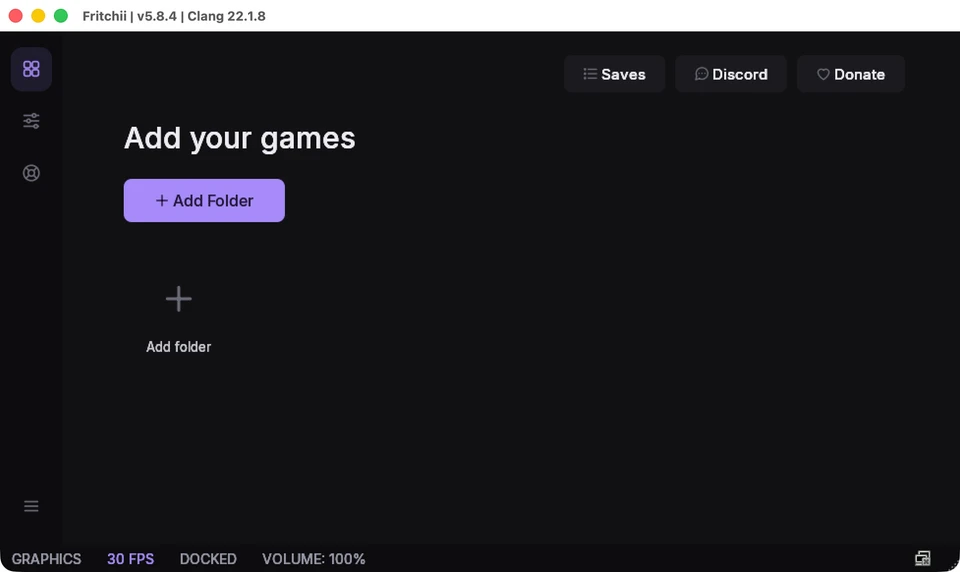
v5.8.4 pre-release · Windows x64 · released 11 November 2026 · guide checked 15 November 2026. Using a Mac? Choose a Mac route ↓
Get the player ZIP from the original GitHub release
Fritchii-v5.8.4-Windows-x64.zip
72,564,448 bytes · contains lichii.exe
Choose the Windows-x64 asset
On the v5.8.4 release page, expand Assets and match the filename above. The debug-symbols ZIP is for debugging; GitHub's Source code archives contain source, rather than a ready-to-run emulator.
Extract the complete ZIP
Use Windows' Extract All and keep the extracted folder together. Run
Fritchii-v5.8.4\lichii.exe. Keep its DLLs and plugin folders beside it; do not run the executable from inside the ZIP.Choose whether to bring an old setup
If Fritchii finds an older emulator folder on first launch, it offers to copy data. Follow the migration choices, or choose Start fresh and set up your own files below.
Check the downloaded ZIP's SHA-256
In PowerShell, run this against the ZIP in Downloads. Change the path if you saved it elsewhere.
Get-FileHash -Algorithm SHA256 "$env:USERPROFILE\Downloads\Fritchii-v5.8.4-Windows-x64.zip"The complete digest for this official asset is:
8fbe37d69665e8264bf9e92fe40846961923cff29dc165f8fdafe193605d10daA different version has a different hash. If this exact package differs, get a fresh copy from the original release.
Add your system files, game folder and controller
Have your own dumped game, keys and firmware ready. The emulator ZIP supplies the application. It does not supply those files. An N64 or 3DS Ocarina ROM belongs to a different project.
On a fresh setup, an Ocarina of Time frame rate dialog may appear first. Choose the 30 FPS or 60 FPS target you intend to use. The bottom-of-window FPS button lets you change it later.
Install the keys
Open Tools → Install Decryption Keys and select your key file. In the new library layout, the lower-left Menu button exposes the traditional menus, including Tools. If you brought over keys during migration, check the library before installing them again.
Install the firmware
Use Tools → Install Firmware → From Folder or From ZIP, matching the form of your own firmware dump. Finish that operation before adding more inputs.
Add the folder containing your games
Use the library's add-folder control and select your game directory. Let the library scan it. Keep the game's base files and matching update version together in your records; a wrong key or incomplete dump is not fixed by renaming a file.
Configure input, then open a game
Open Settings → Input, choose your controller and check its mappings. Return to the library and open your game. For imported progress, verify the expected player and progress in the game before continuing.
If Windows reports a missing Microsoft runtime, use the bundled vc_redist.x64.exe or Microsoft's Visual C++ x64 Redistributable, then reopen Fritchii. A missing DLL named by the dialog is a setup clue; keep the complete extracted player folder.
What do 12GB DRAM and per-game DLSS mean?
12GB DRAM (Switch 2) is an emulated console memory layout. It is not a statement that your PC needs exactly 12 GB of physical RAM. In v5.8.4, Switch 2 games use this layout while running; Fritchii restores your previous setting afterwards.
Per-game DLSS quality and preset are under Game Settings → Graphics, with a use global choice. Open the game's context menu to reach its settings. Availability depends on the renderer and hardware. Change one option at a time and compare the same scene; these options do not establish an FPS result.
Bring an old setup with the first-launch data chooser
Use this route when you want more than progress: keys, settings and optionally Mods. Close the old emulator first. Keep an independent copy of its data folder before importing.
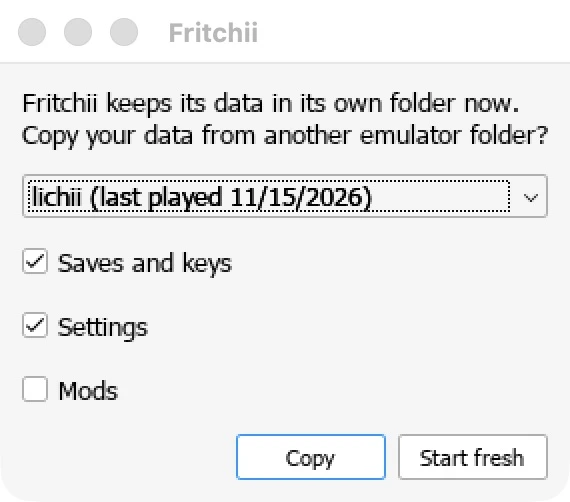
Choose the source and categories, then Copy or Start fresh
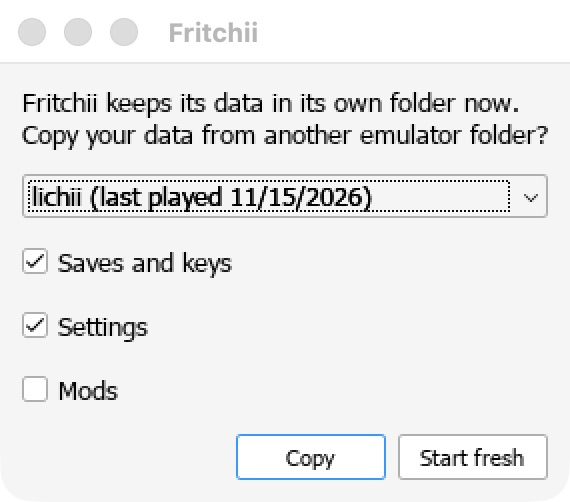
Select the detected source folder. Saves and keys and Settings start checked; Mods starts unchecked. Copy uses those choices. Start fresh skips this import.
Image source ↗View the complete window
 Open full-size image ↗
Check the source folder
The chooser lists detected folders. Eden and Lichii are preferred ahead of the older emulator profiles. Pick the folder you actually used, rather than accepting a name without checking it.
Choose the categories you need
Saves and keys also brings the relevant NAND/SDMC data; Settings copies the configuration and related small settings folders. Tick Mods only if you intend to carry them over. The v5.8.4 chooser controls this selection, even though older README text describes an automatic copy.
Choose Copy and read the result
Let the copy finish. The result names Fritchii's data folder. If it says nand or sdmc was too big to copy and is shared with the old folder, keep that old folder: Fritchii is using a link to it. Freeing space before migration helps keep separate copies.
Verify your game before retiring the old setup
Check the same game, update and user profile. Confirm the expected progress, then create and reload a normal in-game save. Shader caches are prepared again; cache rebuilding is separate from saved progress.
Already chose Start fresh? Use Help → Copy Data from Eden or Lichii... later. Fritchii restarts to copy over its own selected data and keeps the previous destination folders beside the replacement in paths ending in .backup. This is broader than the Saves window: leave Settings and Mods unchecked if you only intend to bring progress and keys.
The automatic chooser looks for the standard legacy data directories. An old portable user folder elsewhere may not appear. Keep it intact and use an exported save ZIP or the manual per-game route below instead of moving its whole contents over an active Fritchii profile.
Use Saves for progress: export, import or copy
Stop the game. Open Saves from the library or Help menu. For a cross-emulator copy, also close the destination emulator. These actions copy saved progress; they do not keep two installations synchronized or import controller settings.
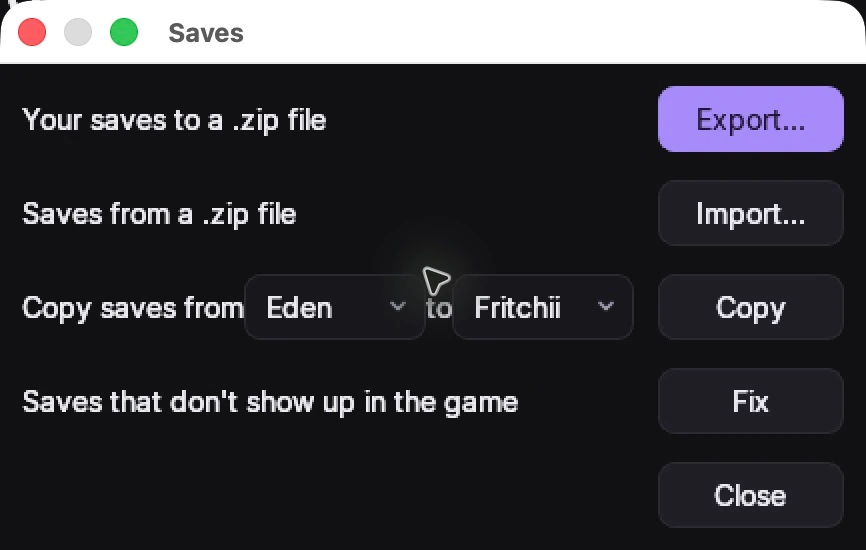
Make a ZIP backup, or import one
Check both emulators before choosing Copy
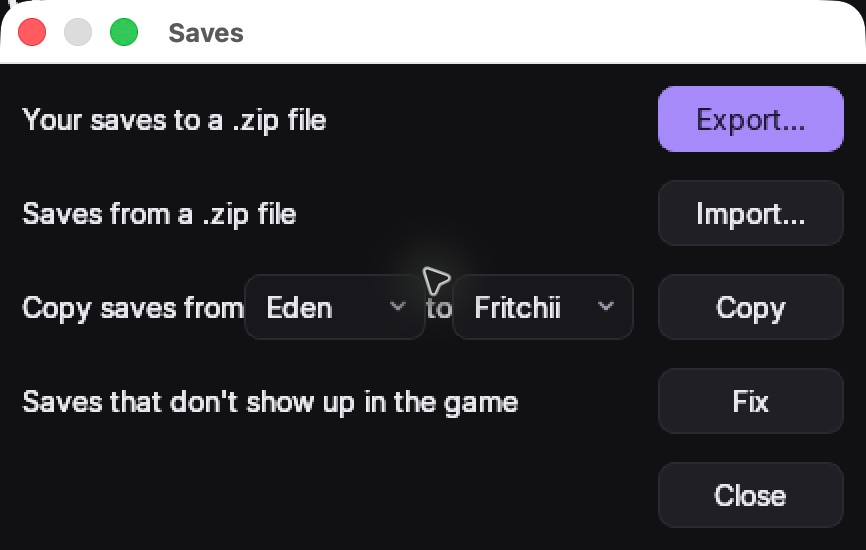
Export and Import use ZIP files. The From and To selectors copy between detected Fritchii, Eden and Lichii locations. The additional Fix row appears only when saves sit under a profile missing from Fritchii.
Image source ↗View the complete window
 Open full-size image ↗
| You have | Choose | What happens |
|---|---|---|
| Progress in Fritchii | Export | Saves the profile folders to a ZIP. Keep the ZIP outside the active data root. It contains saves, rather than the whole configuration. |
| A compatible save ZIP | Import | Checks the archive, asks for confirmation, backs up Fritchii's saves and replaces saves for matching games. |
| An installed Eden or Lichii profile | From → To → Copy | Backs up the destination, then copies the source's game saves into its registered profile. Check both selectors before confirming. |
If the source has several user profiles, keep each player’s progress backed up separately. With registered destination users, Import and Copy choose one automatically: a user with existing saves, otherwise the first registered user. Multiple source users’ saves for the same game can replace one another. Use the manual per-game route below when you need one specific player’s save.
Export the progress you already have
Choose Export and save the ZIP to your backup location. The default name is
Fritchii saves YYYY-MM-DD.zip. If the app says it has no saves yet, check the active data root and user before treating an empty directory as a backup.Import a ZIP or choose the copy direction
For an archive, choose Import and select it. For a local Eden/Lichii installation, select the source in From and Fritchii in To, then choose Copy. To copy back, reverse those selectors and close that destination app.
Read the replacement and backup confirmation
Matching games' destination save folders are replaced, rather than merged file by file. Other games are left in place. The confirmation shows the destination backup path. Cancel if you selected the wrong direction or still need an independent copy.
Keep the backup, then check in-game progress
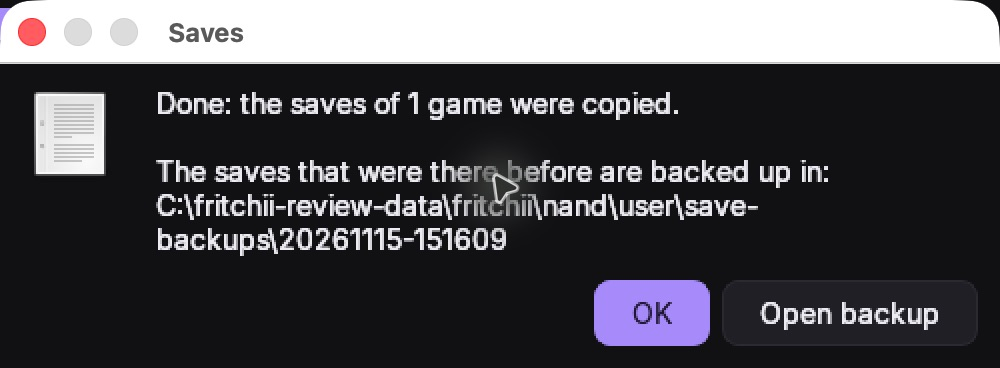
The completion message repeats the backup path and offers Open backup. Launch the same game and user at the destination. Confirm progress, save, close and reload before relying on the migrated copy.
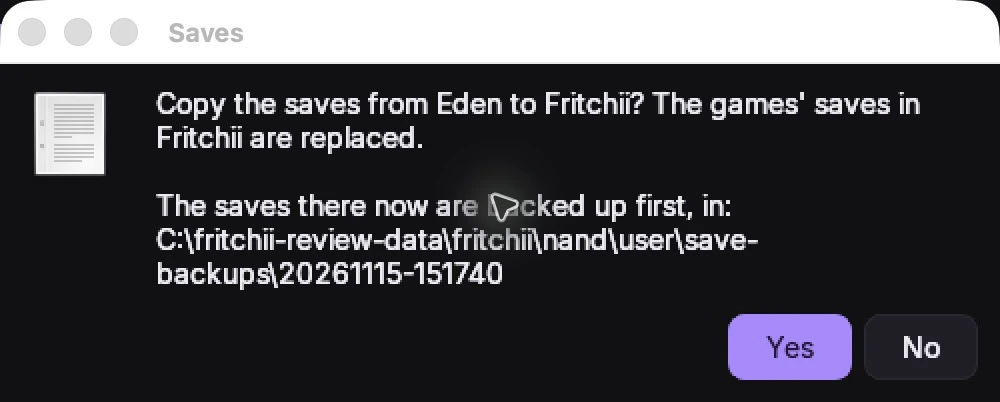
Source, destination, replacement and backup are all named
This v5.8.4 confirmation names Eden as the source and Fritchii as the destination, states that matching game saves are replaced and shows the backup path before Yes.
Image source ↗View the complete window
 Open full-size image ↗
My ZIP says “no saves in that zip file”
The manager expects 32-hex-character user-profile folders at the archive root, or directly under 0000000000000000. A ZIP containing just one game's files is a different layout.
For a manual single-game save, first create a normal save in the destination game. Stop it, right-click its library entry and choose Open Save Data Location. Quit the emulator, back up that game's entire folder, then put your matching game-save contents in that location. Reopen the same game/user to check them. Keep all files that belong to the game's save together.
Eden or Lichii is missing from From / To
The copy selectors add a legacy emulator when its expected NAND directory exists. A custom or portable installation may be elsewhere. Check its own active folder, then use a compatible exported ZIP or the manual game-save procedure. Do not create an empty standard directory and assume it contains your progress.
Fix saves that were copied under the wrong profile
v5.8.3 could copy saves under the old emulator's user ID. v5.8.4 copies into the destination's own profile and can repair those earlier copies. This fix addresses a profile mismatch, rather than damaged or incompatible game saves.
Look for Saves that don't show up in the game
Choose Fix, then review its confirmation
Fix is shown when registered Fritchii users and the save-profile folders do not match. The window was captured before fixing an isolated sample profile.
Image source ↗View the complete window
Open full-size image ↗Update to v5.8.4 and stop the game
Open Saves. If the app finds save-profile folders that are absent from its registered users, it shows Saves that don't show up in the game and a Fix button.
Review Fix before confirming
Choose Fix. It backs up the save root, moves the orphaned game saves into Fritchii's registered profile and replaces matching game saves there. The destination user with existing saves is preferred; otherwise it uses the first registered user. For several players, keep separate exports before combining their progress.
Open the backup and check the game
Use the path in the result to retain the original files. Reopen the correct game and user. If no Fix button appears, investigate the selected user, data root and game version instead of repeatedly copying the same files.
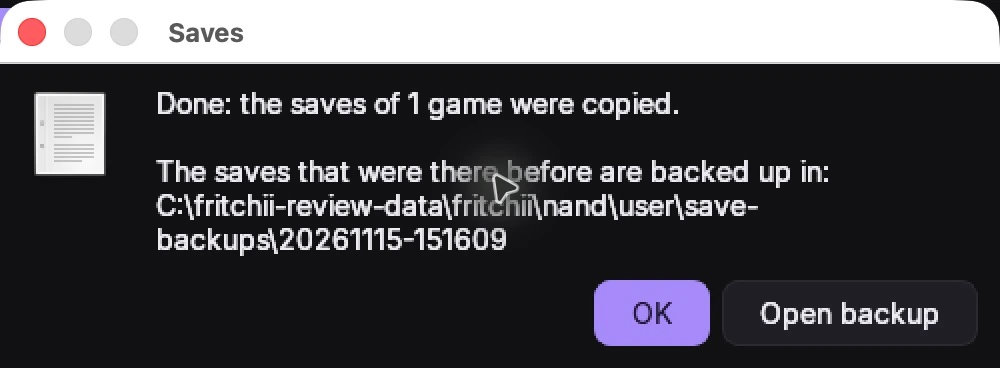
The result repeats the backup path and offers Open backup
The real Saves confirmation/result identifies the destination backup. Keep that location with your migration record; Open backup is available in the completion message.
Image source ↗View the complete window
 Open full-size image ↗
Restore the saves that were there before an import, copy or Fix
- Stop the game and quit the destination emulator.
- Preserve its current save root separately so you can undo the restore.
- Open the timestamped backup named by the completed operation. It holds the previous save-root contents, including the profile folders.
- Restore those contents to that same destination's active
nand\user\save\0000000000000000root, keeping its folder structure. Use the app's custom NAND path if it differs from the default below. - Reopen the previous game version and user to check progress. A save written by a newer game update may require that update.
The Saves backup covers saved progress. The separate Help data import uses .backup folders for the data it replaces.
Update the app while keeping the same data root
Fritchii v4 through v5.8.3 offers the v5.8.4 update when opened. Keep a save export and the previous app before accepting it. If updating manually, extract the complete new player ZIP to a separate folder and identify where your current copy stores its data first.
WINDOWS DATA ROOT · PATH DIAGRAM
user beside lichii.exe takes priority.
%APPDATA%\fritchii
- Current saves
nand\user\save\0000000000000000\<profile>\<game>- Saves-operation backups
nand\user\save-backups\<timestamp>
Press Windows–R and paste the default root below. Prefer the app's File → Open Folder → Data action when using a portable root or changed storage settings.
%APPDATA%\fritchiiDefault save and backup paths
%APPDATA%\fritchii\nand\user\save\0000000000000000%APPDATA%\fritchii\nand\user\save-backupsFor a copy to Eden or Lichii, the automatic backup belongs to that destination's NAND, rather than Fritchii's. Use the exact path shown by the operation. A custom NAND location also changes these paths.
For a portable update, keep the original user folder backed up and bring the complete folder beside the new executable while both copies are closed. Starting a new copy without it uses the standard root and can make the library appear empty. Recheck the same game and progress after updating. v5.8.4 reapplies its tuned defaults once; review settings you had customized.
Match the symptom to the step that failed
The old data could not be copied
Close every emulator and program using that source folder, then use Close and try again. The import attempts recovery before reporting failure. Start without it lets you inspect the new app; Help's Copy Data action can import later. Keep the source and any .backup folders until progress is checked.
My game or progress is missing after an update
- Confirm the active data root, especially a portable
userfolder beside the previous app. - Confirm the same game, update and selected user.
- For a v5.8.3 profile-copy problem, use the conditional Fix procedure.
- Keep the current files, then restore from the backup named by the operation if necessary.
The game crashes or renders incorrectly
Record the Fritchii version, Windows version, GPU/driver, game version, last action and exact message. Compare without imported Mods and undo unrelated setting changes. A graphics or shader problem needs its own diagnosis; importing a save again will not repair it. The 12GB DRAM switch alone is not a general crash fix.
Choose by platform and the game files you own
Want the upstream emulator on a Mac? The Lichii installation and Eden migration guide covers its Apple silicon app and its own Keep Old Data workflow.
The v5.8.4 official release supplies a Windows x64 player package. It has no Mac player asset. For a Mac, choose a project that supplies the route you need; source portability alone does not supply a Mac installer.
| Your task | Continue with | Input / approach |
|---|---|---|
| Use this emulator on Windows | Fritchii v5.8.4 | Own console game/system files; emulator library and Saves tools. |
| Build Switch 2 Ocarina for PC | NX2navi | Its supported Switch 2 version 1.1.1; a separate local recompilation workflow. |
| Build through Hookshot's continuation | Longshot on Windows or Linux | Its supported Switch 2 game, separate Launcher/Builder versions and folder-based save importer. Extract a save export before selecting its folder. |
| Use a Switch 2 emulator on Mac | Eglantine | Choose its Mac build; check the game's compatibility and current input requirements. |
| Play N64 Ocarina on Mac | Ship of Harkinian | A supported N64 ROM and the SoH Mac app. |
| Play Ocarina of Time 3D on Mac | Ocarina ReTuned | A supported decrypted 3DS ROM and local game preparation. |
These projects use different inputs and data layouts. A common game name does not make their game files or saves interchangeable. Browse the project directory →
Original downloads, source and interface versions
- Frizti/Fritchii on GitHub and v5.8.4 release — original Windows player package, update behavior and profile-copy fixes.
- v5.8.3 Saves manager and v5.8.2 migration choices.
- Pinned data-import implementation, Saves implementation and data-root selection at
4f5c531. - Tools and folder menus, inherited quick start and manual game-save location. The release-specific filename and migration chooser above take precedence over older Eden examples.
English interface images show the original v5.8.4 Windows application, captured through Wine on macOS with isolated sample profiles. The Fix and backup examples use test files. They demonstrate controls and file-operation feedback; no game was loaded for these captures. Fritchii is distributed under GPL-3.0-or-later.